Hoe te kopen uit de Onderwater Flowers webshop
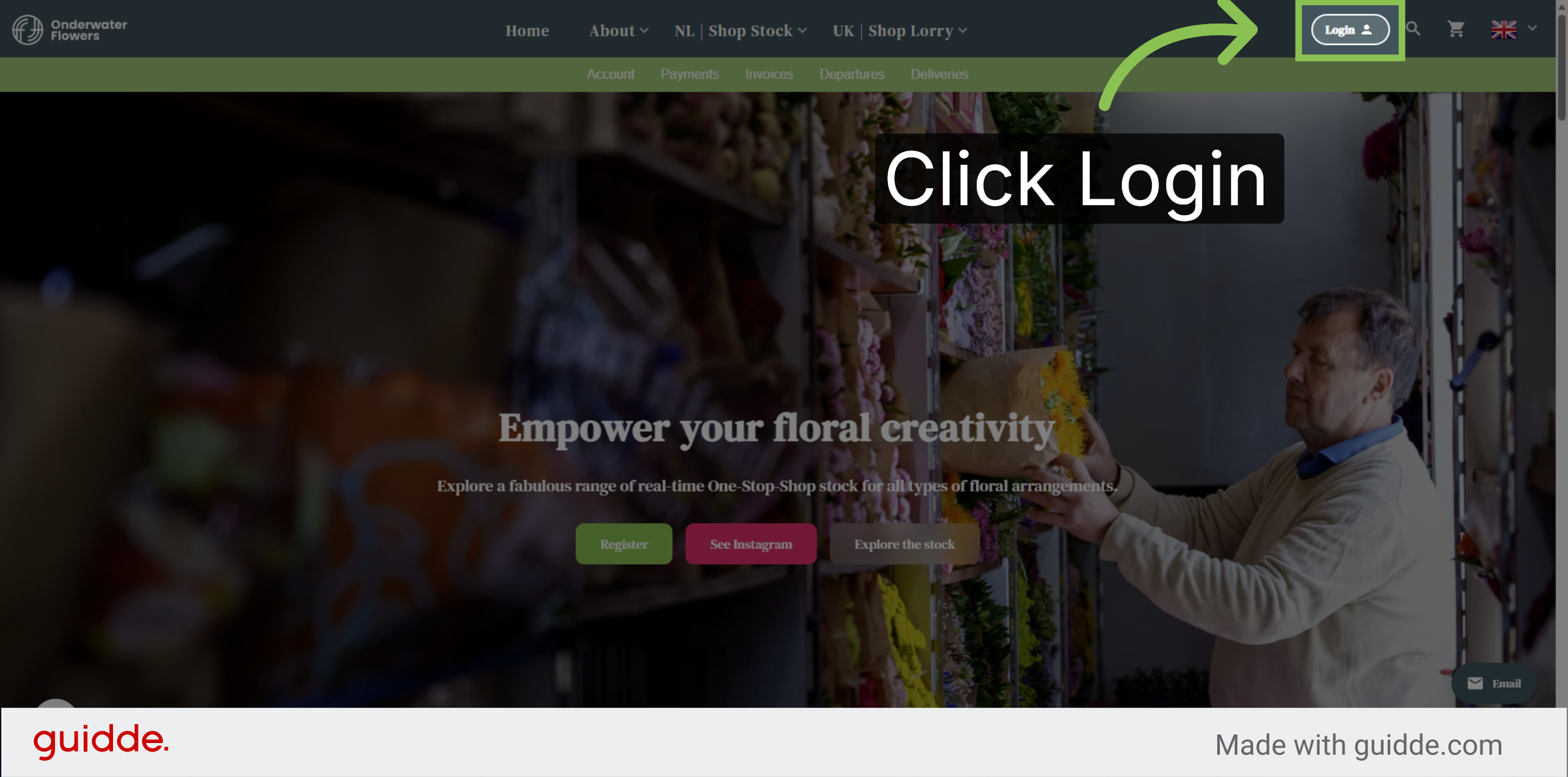
Access Login Page
This video shortly explains on how to buy from the Onderwater Flowers webshop. Please navigate to the Login button to insert your login details provided by the office after registration. If you are not yet registered, please do so by clicking on the 'Register' button on the homepage.
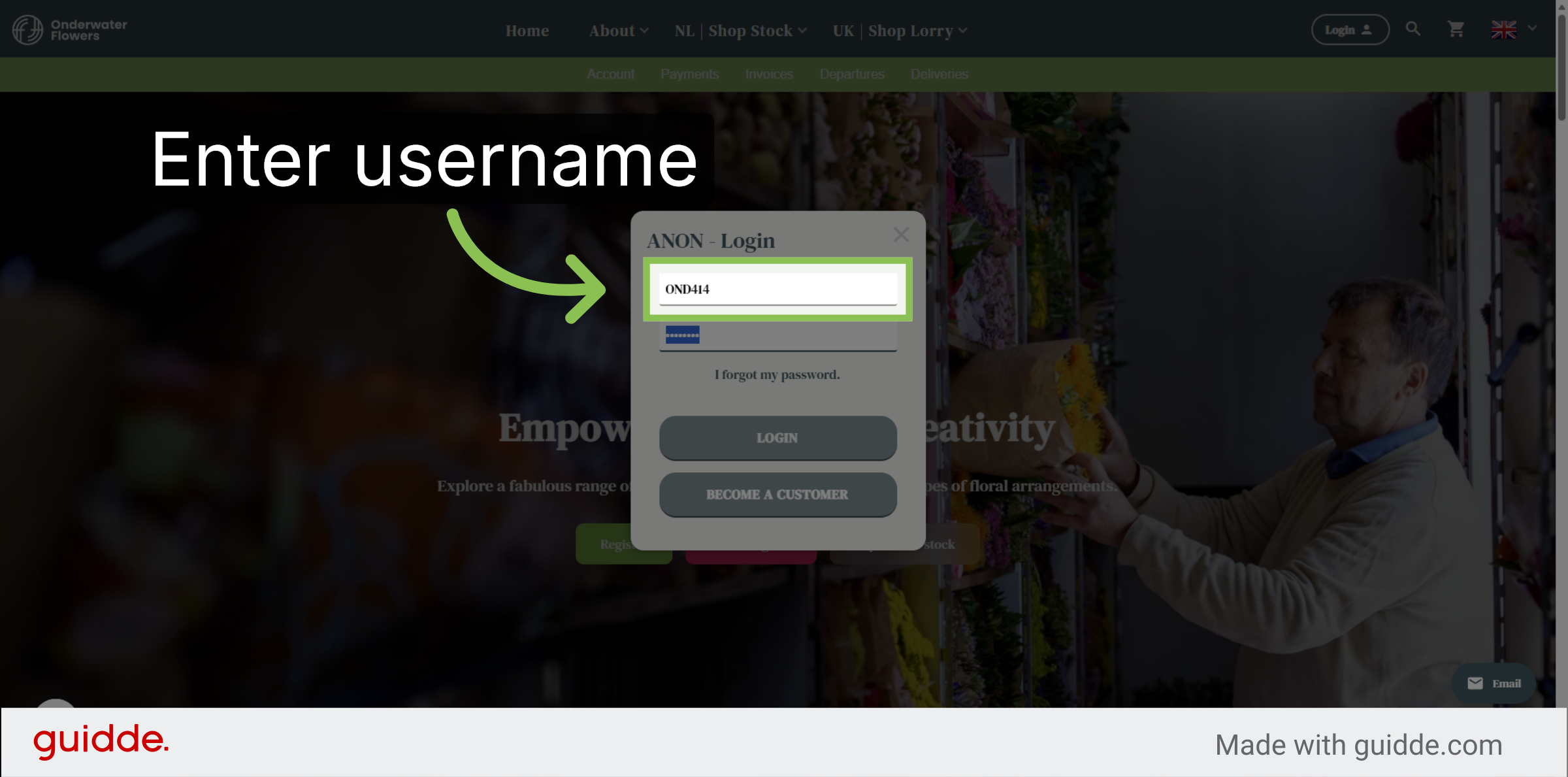
Enter Username
Enter your username in the username field to proceed.
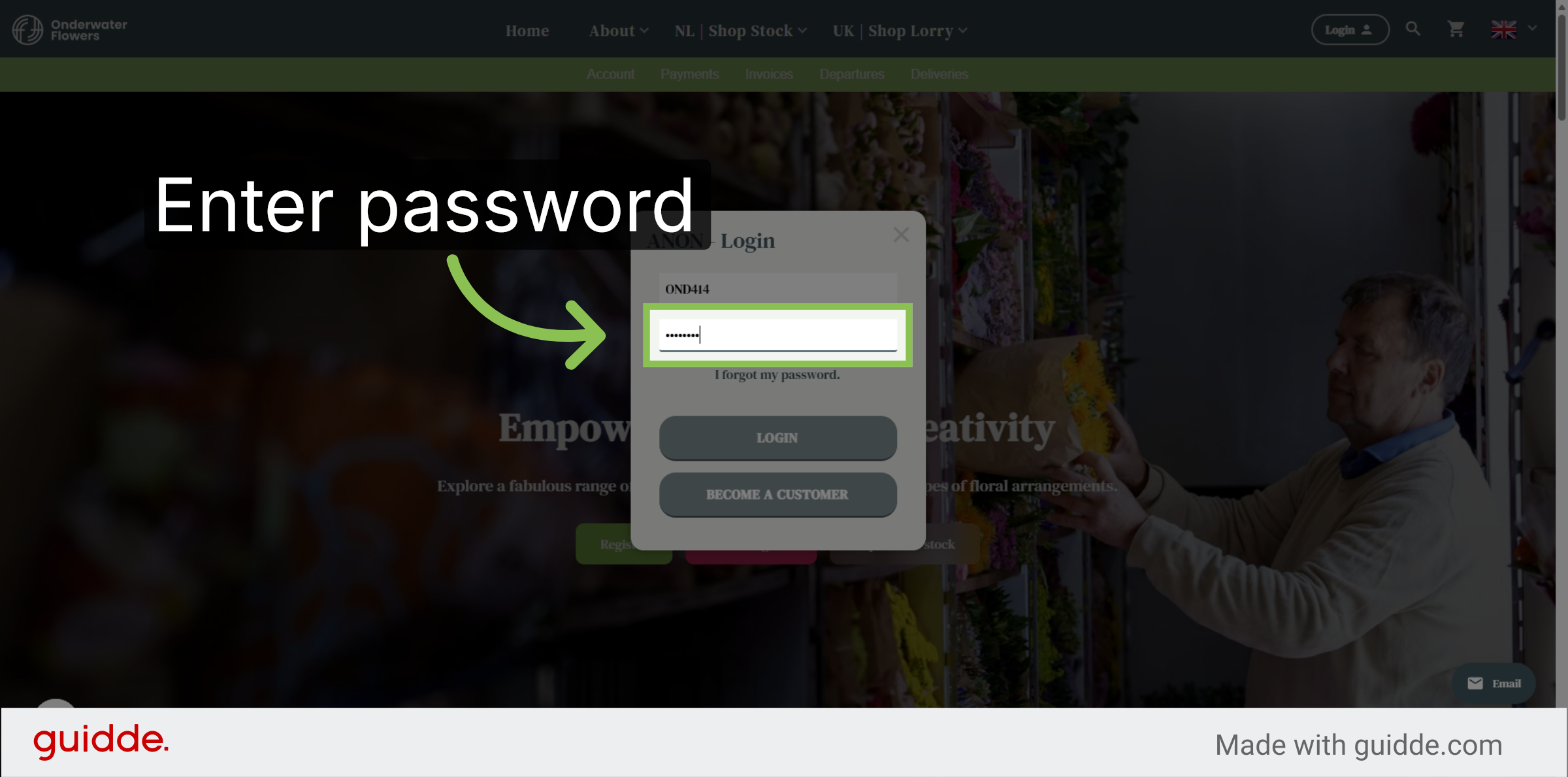
Re-enter Password
Fill in your password in the password field. Please note: this password is not capital sensitive.
Submit Login Credentials
Click the Login button to submit your credentials and access your account.
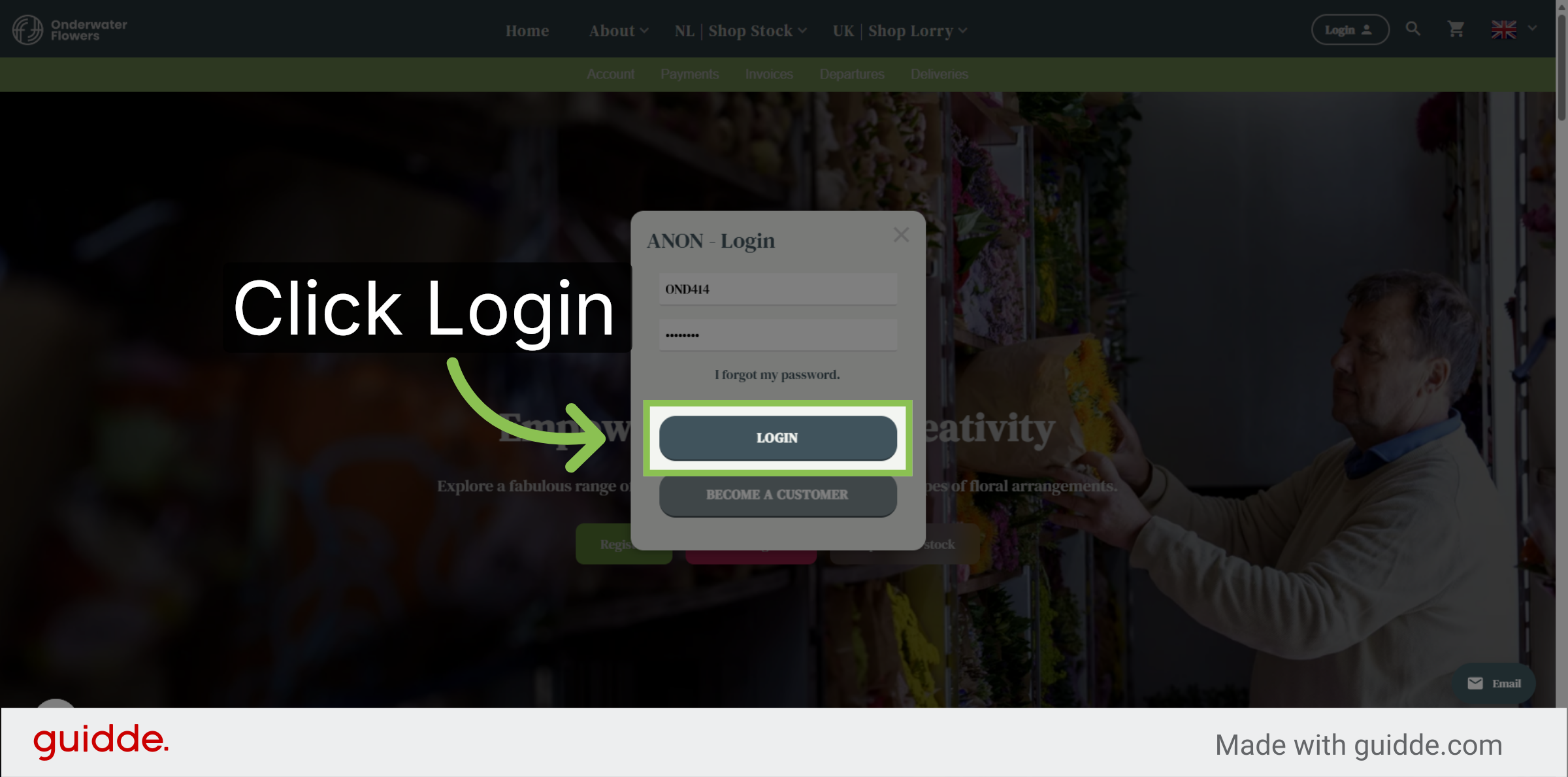
Navigate Home Page
Once logged in, click here to continue navigating to your account overview.
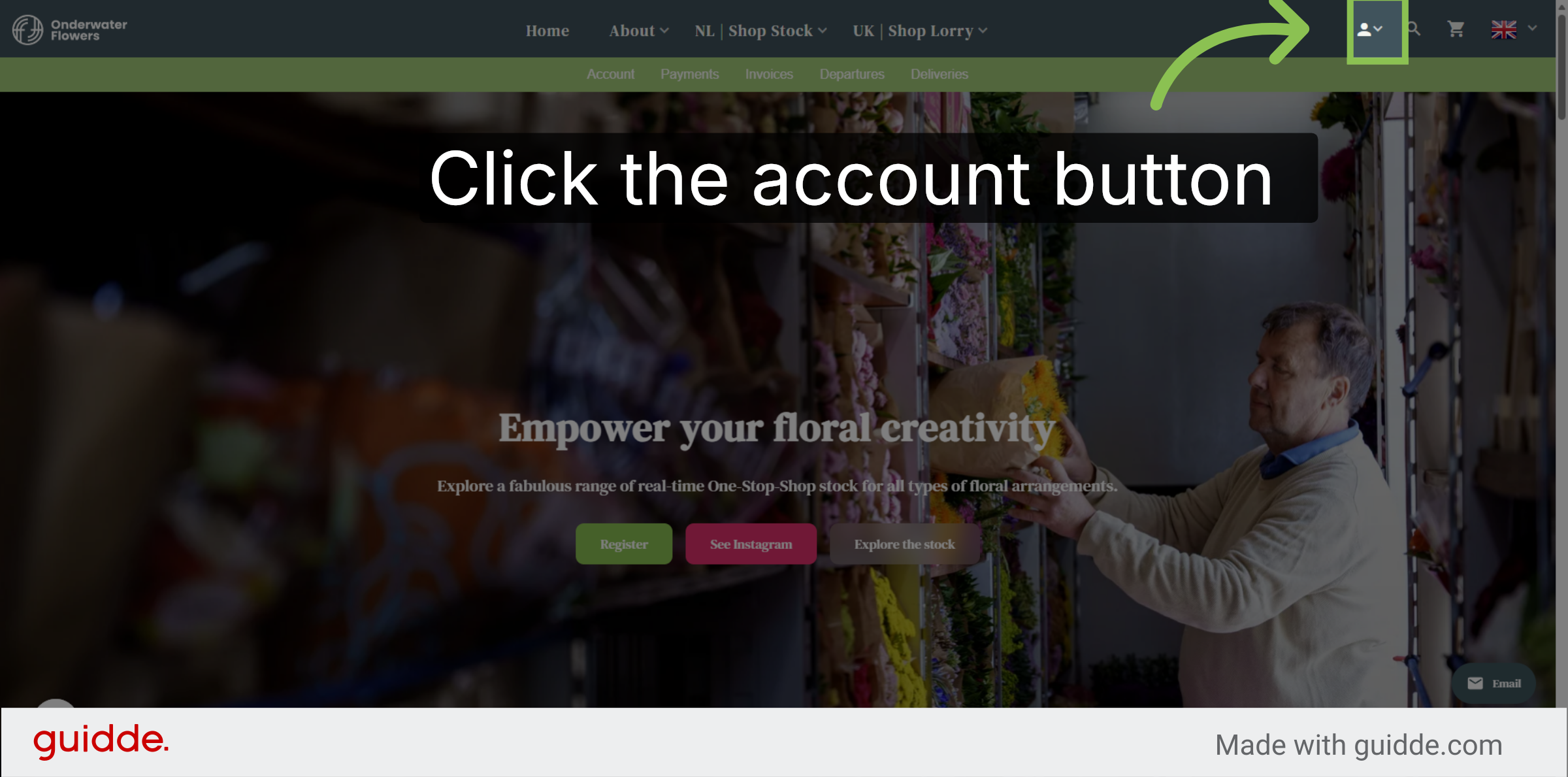
Open Account Settings
Click Your account to access your personal account settings and information.
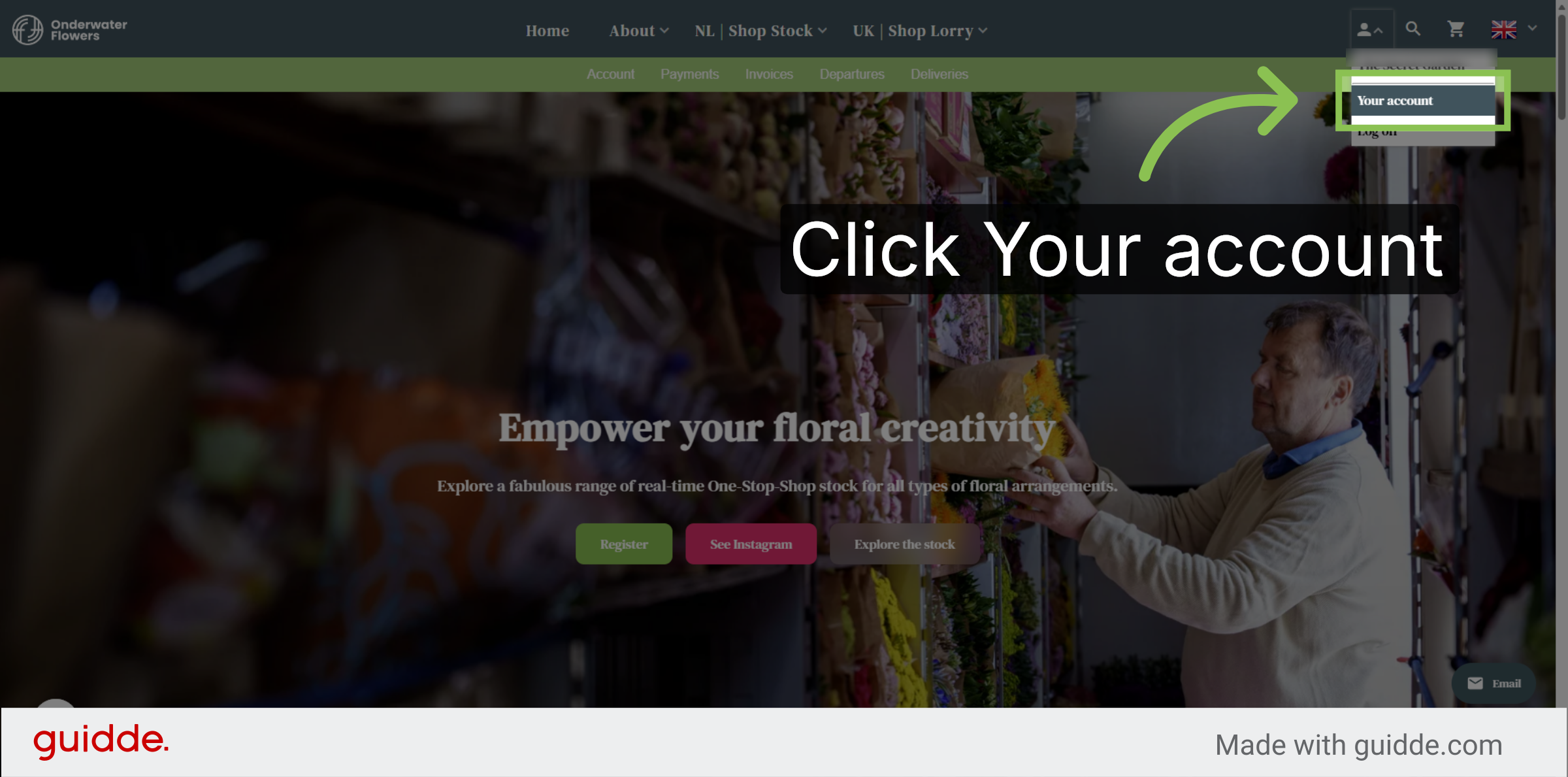
View Invoice Section
Click Invoices to review your billing statements and history.
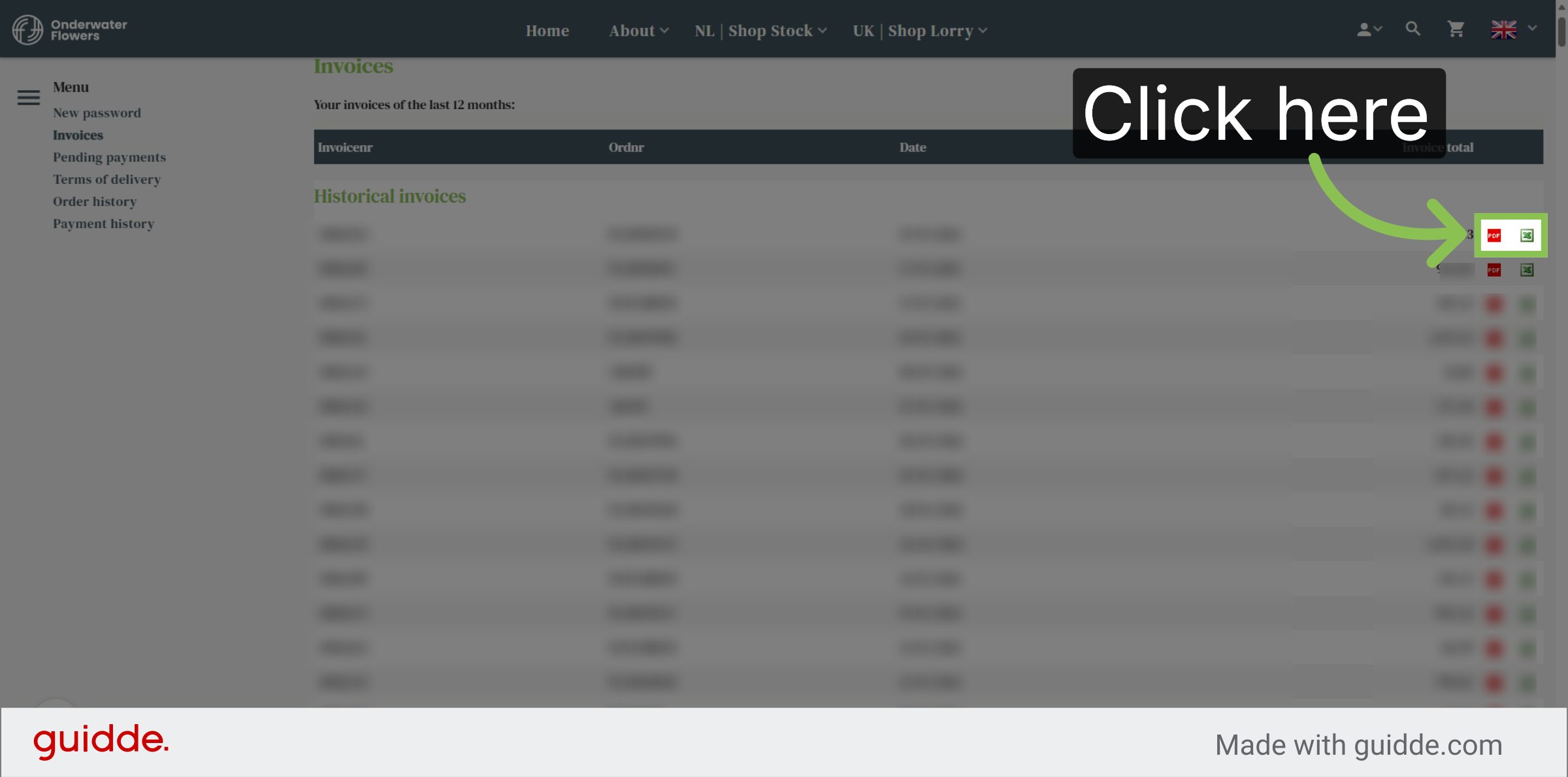
Access Invoice Details
Click here to view detailed information about your invoices. You can either download it by PDF or Excel.
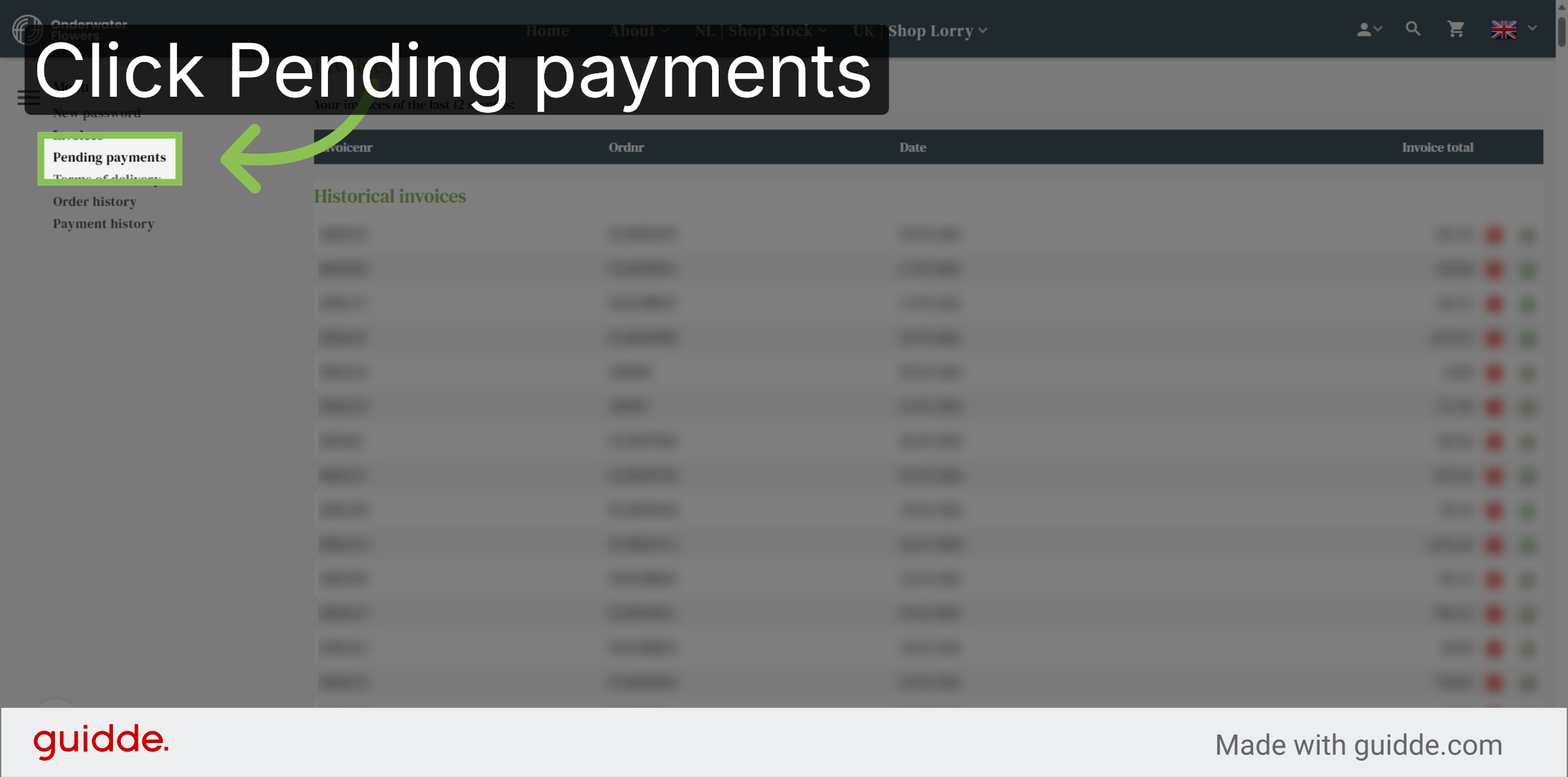
Check Pending Payments
Click Pending payments to see any outstanding amounts that require your attention.
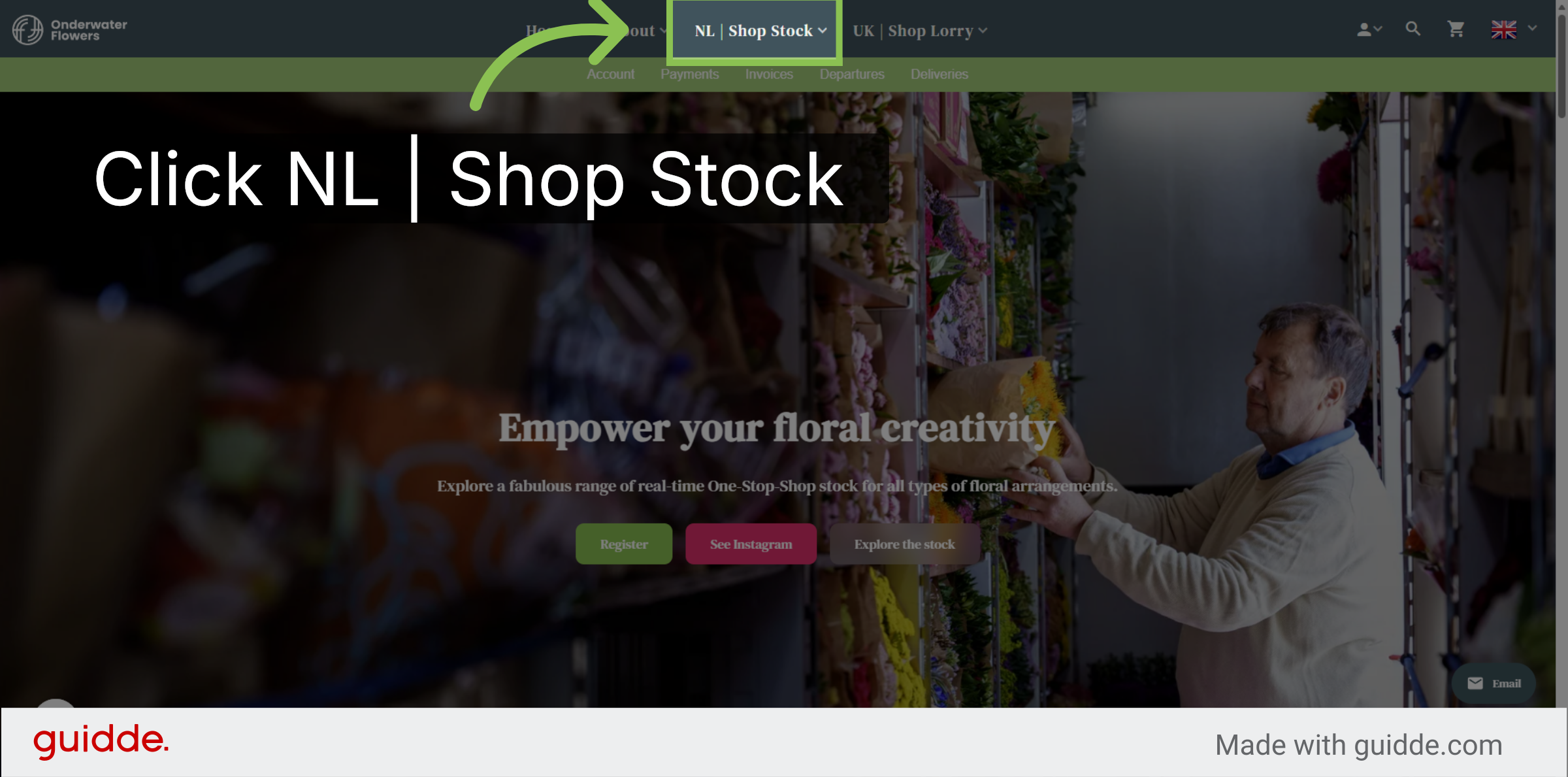
Access Shop Stock
Back at the homepage, click NL Shop Stock to view the current parcels available in the shop.
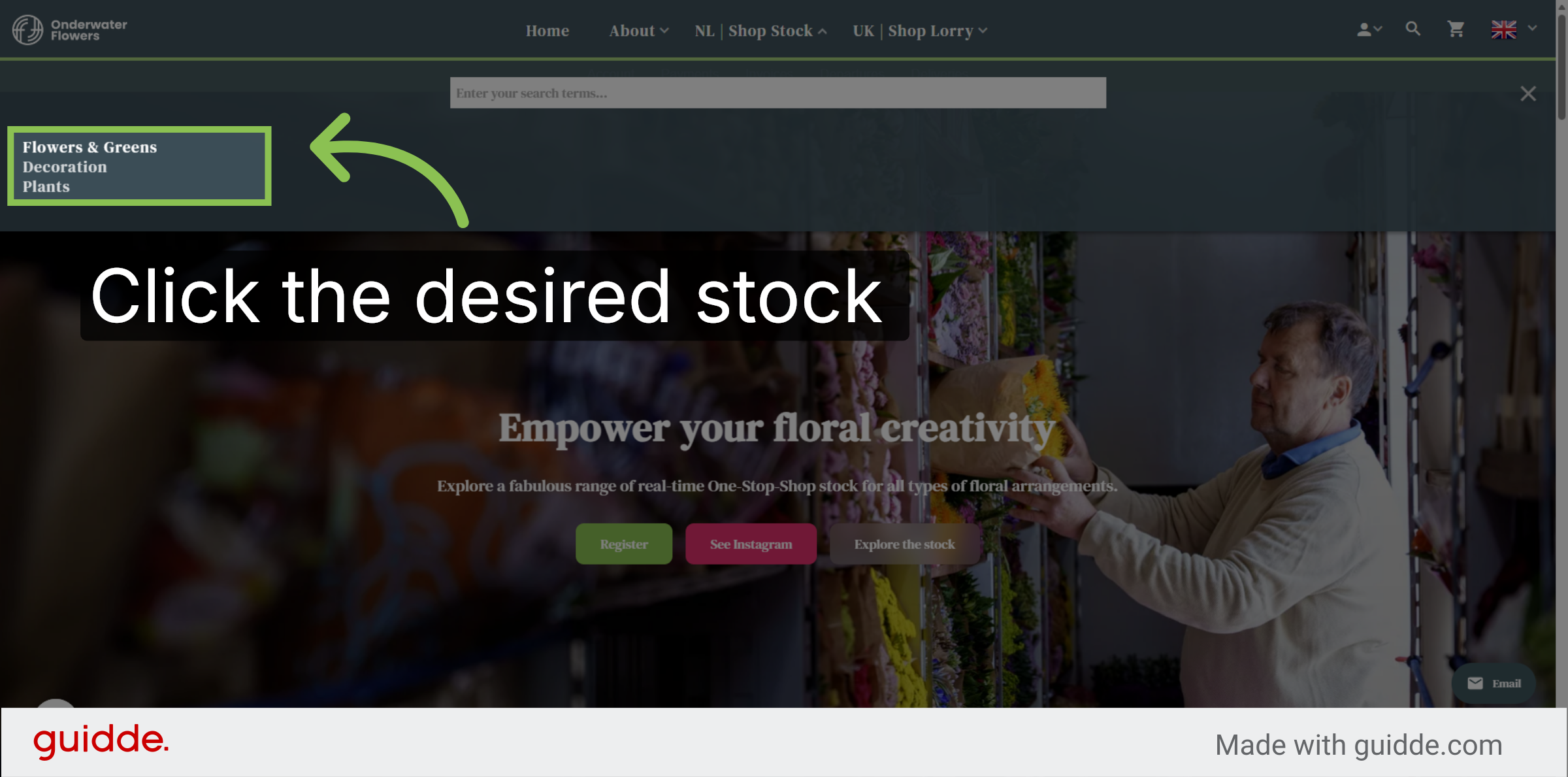
Open Flowers & Greens
Shop stock is divided by the sections Flowers & greens, Decorations and plants. Click Flowers & Greens to browse the selection of floral and greenery.
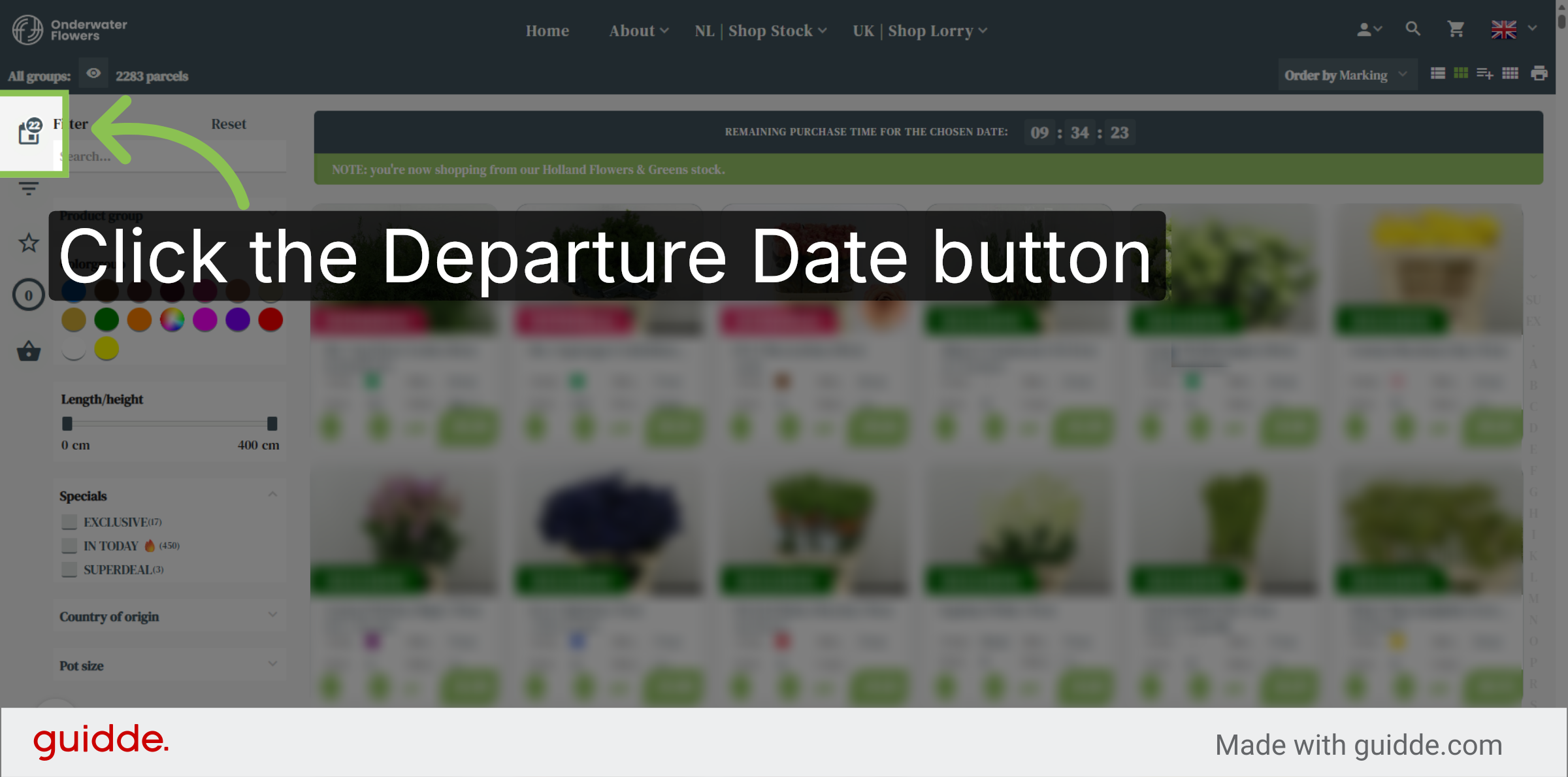
Select Departure Date Filter
Click the departure date together with the estimated day of arrival filter to specify the date for product availability.
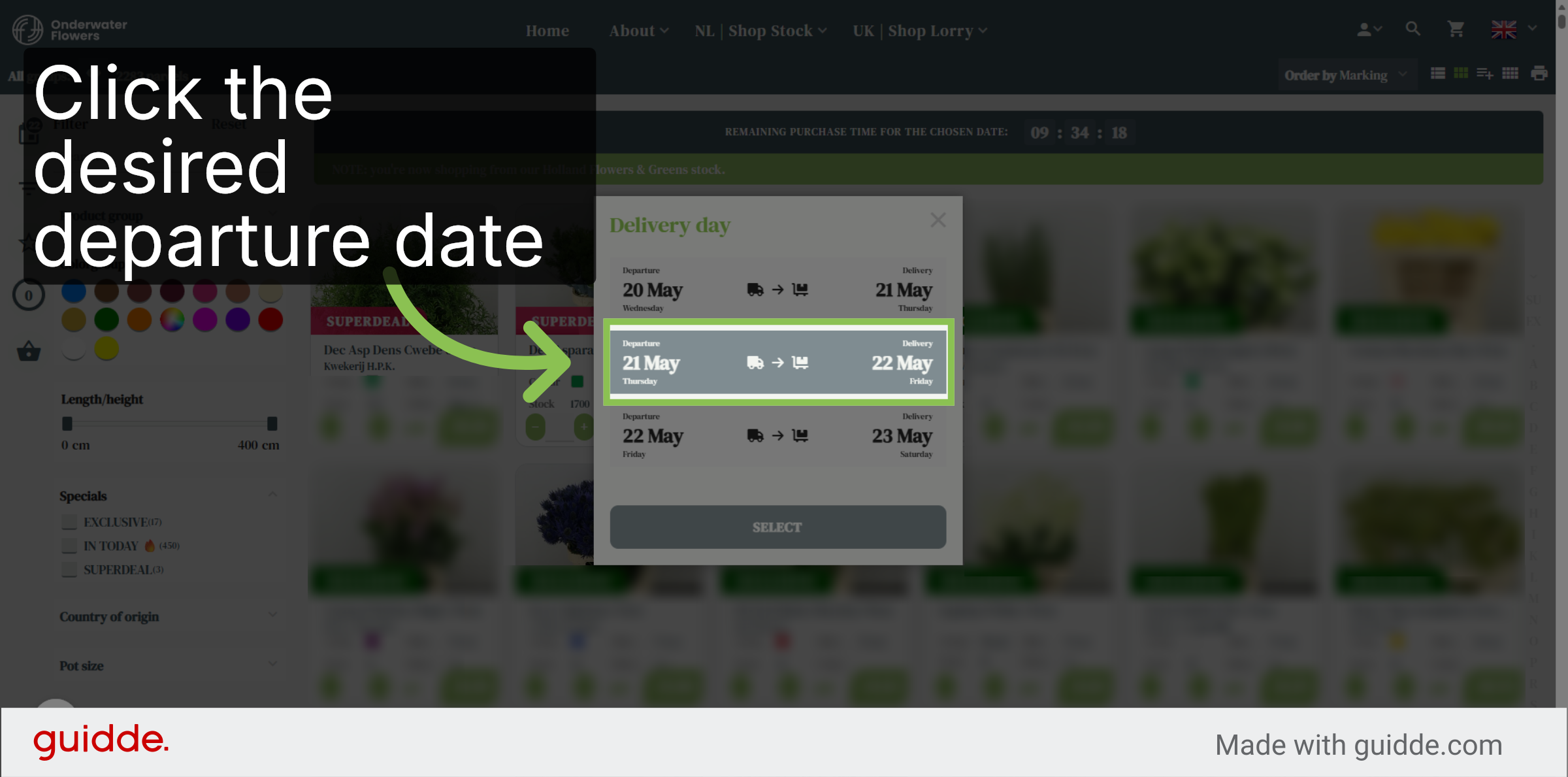
Departure Dialog
This departure dialog shows the actual valid departure days and estimated day of arrival in this particular inventory. Please make sure you choose the right departure date as this is critical for your delivery date.
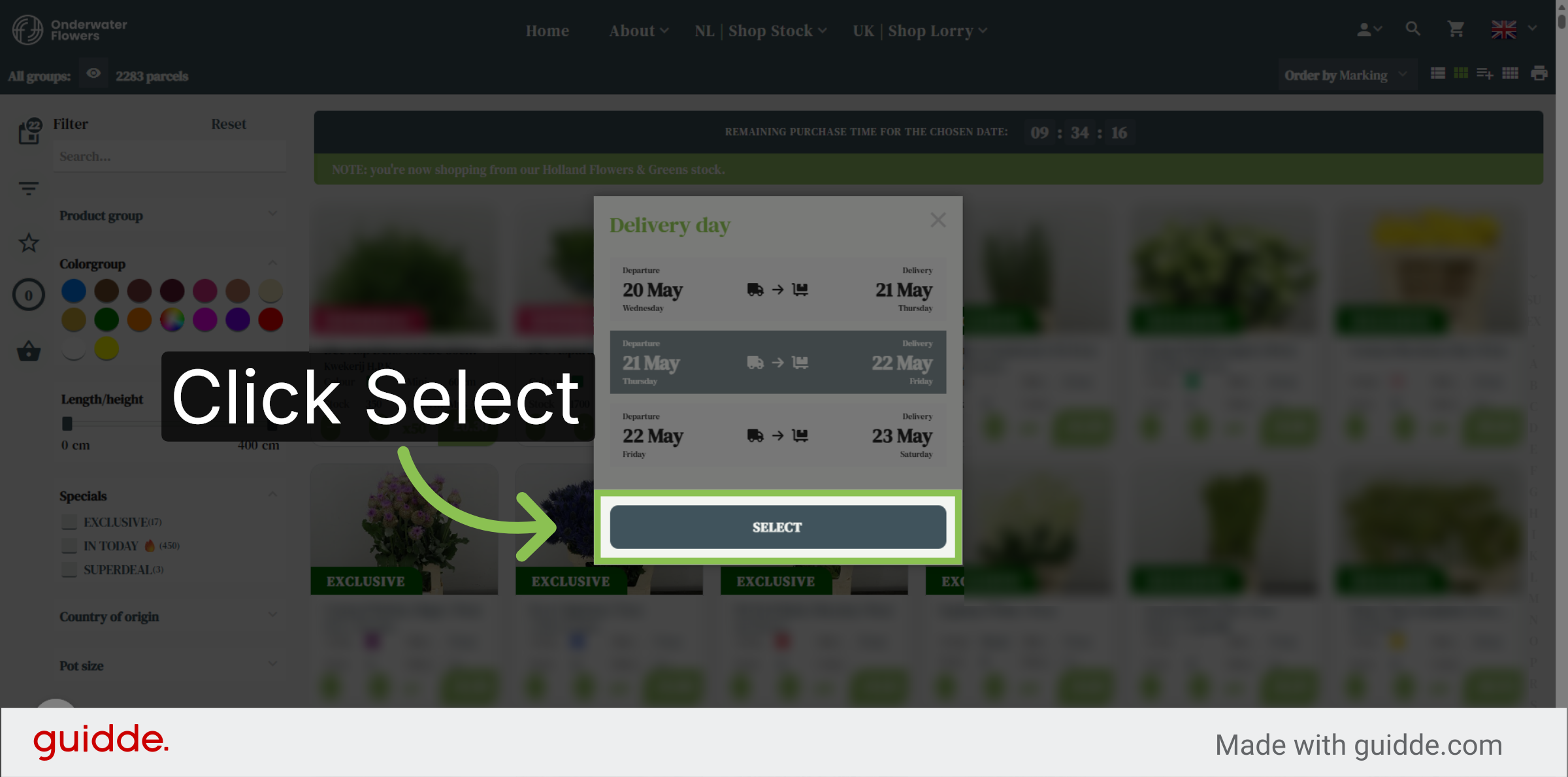
Confirm Selection
Click Select to confirm your chosen departure date.
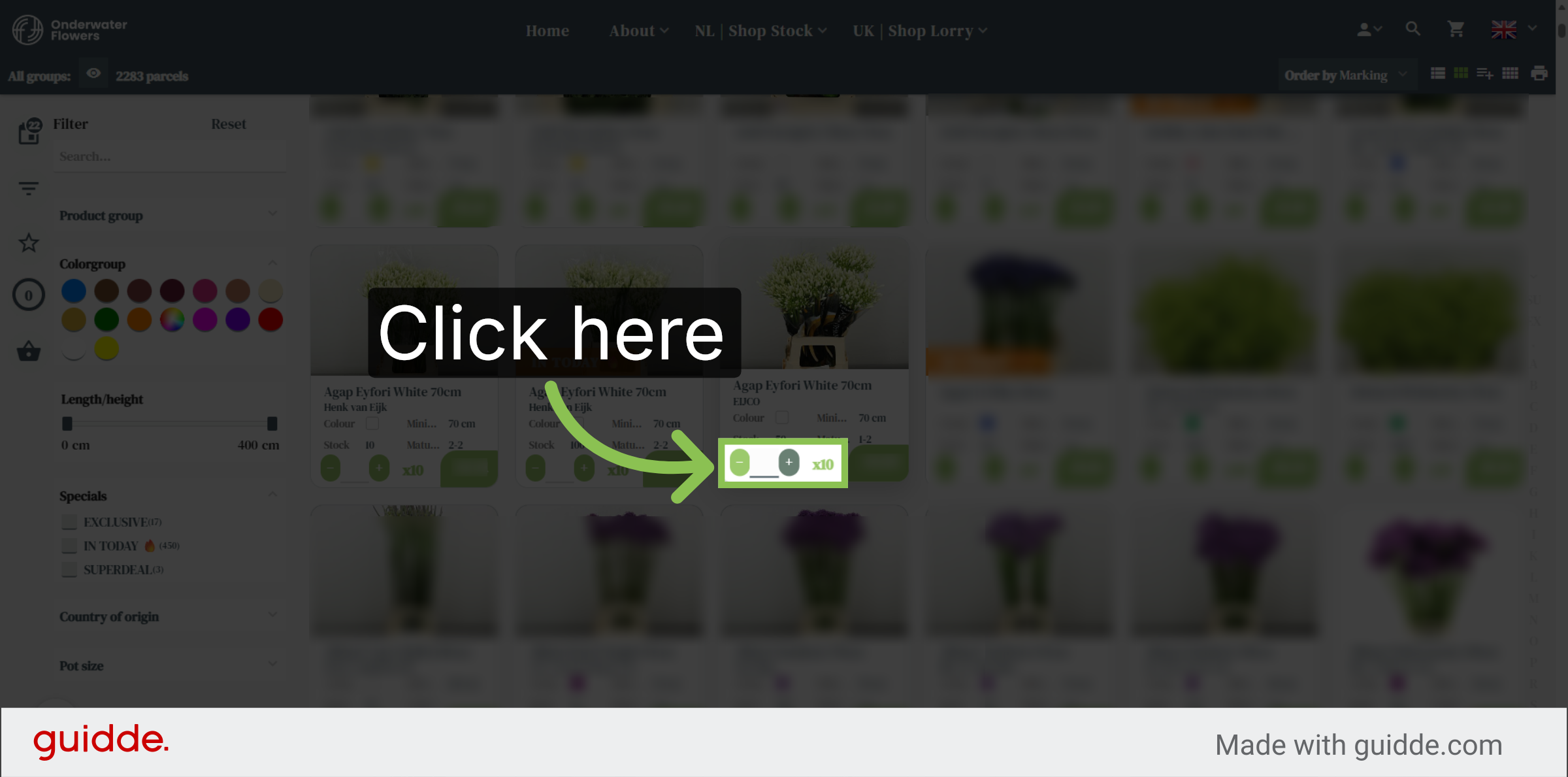
Add Item to Basket
Click here to add an item to your basket. Every parcel has its own sales unit. In this case we buy 1 times 10 stems of Agapanthus.
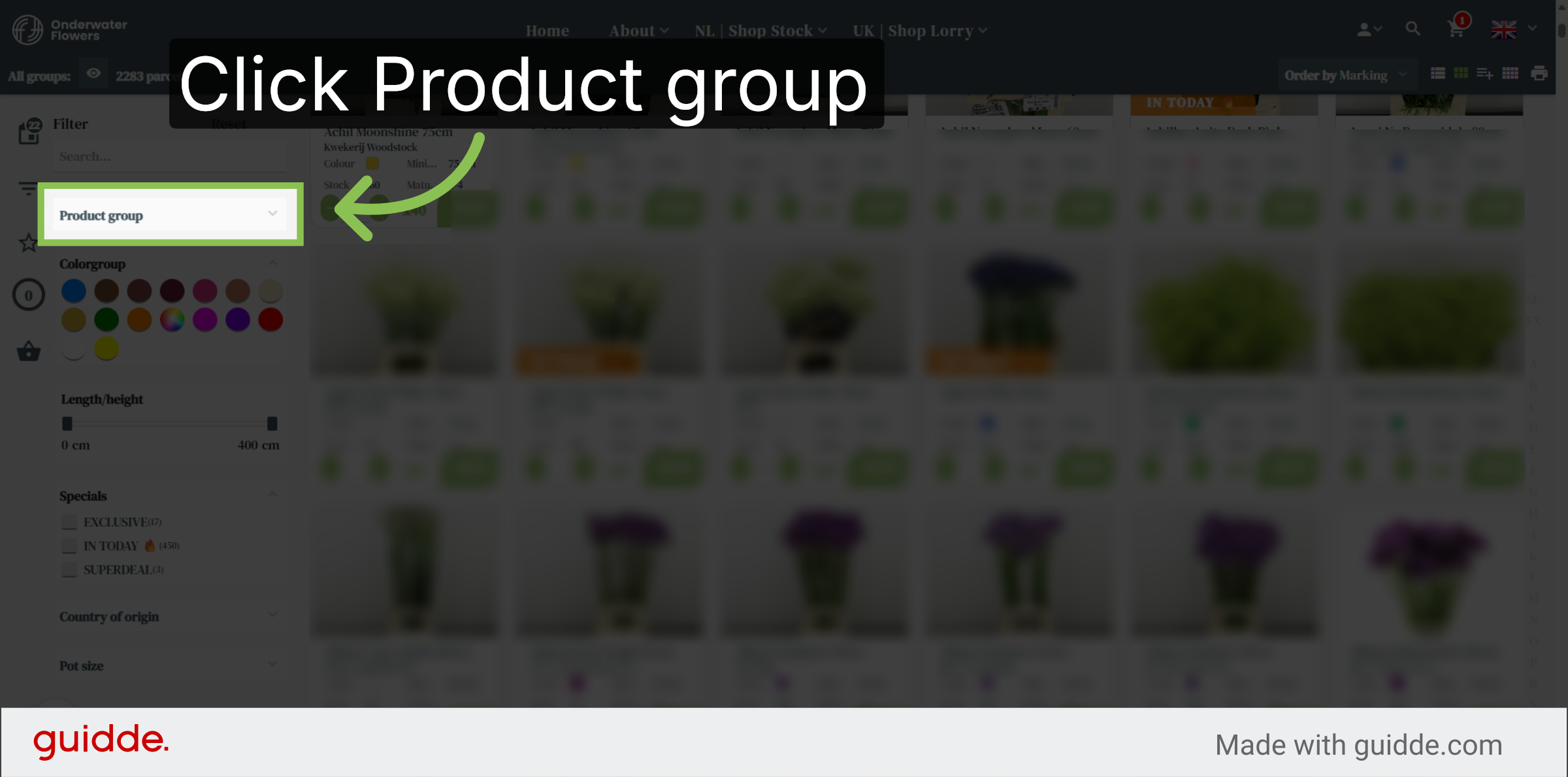
Open Product Group Filter
In the left panel you will be able to filter the inventory. Open the Product group list to filter products by their group classification.
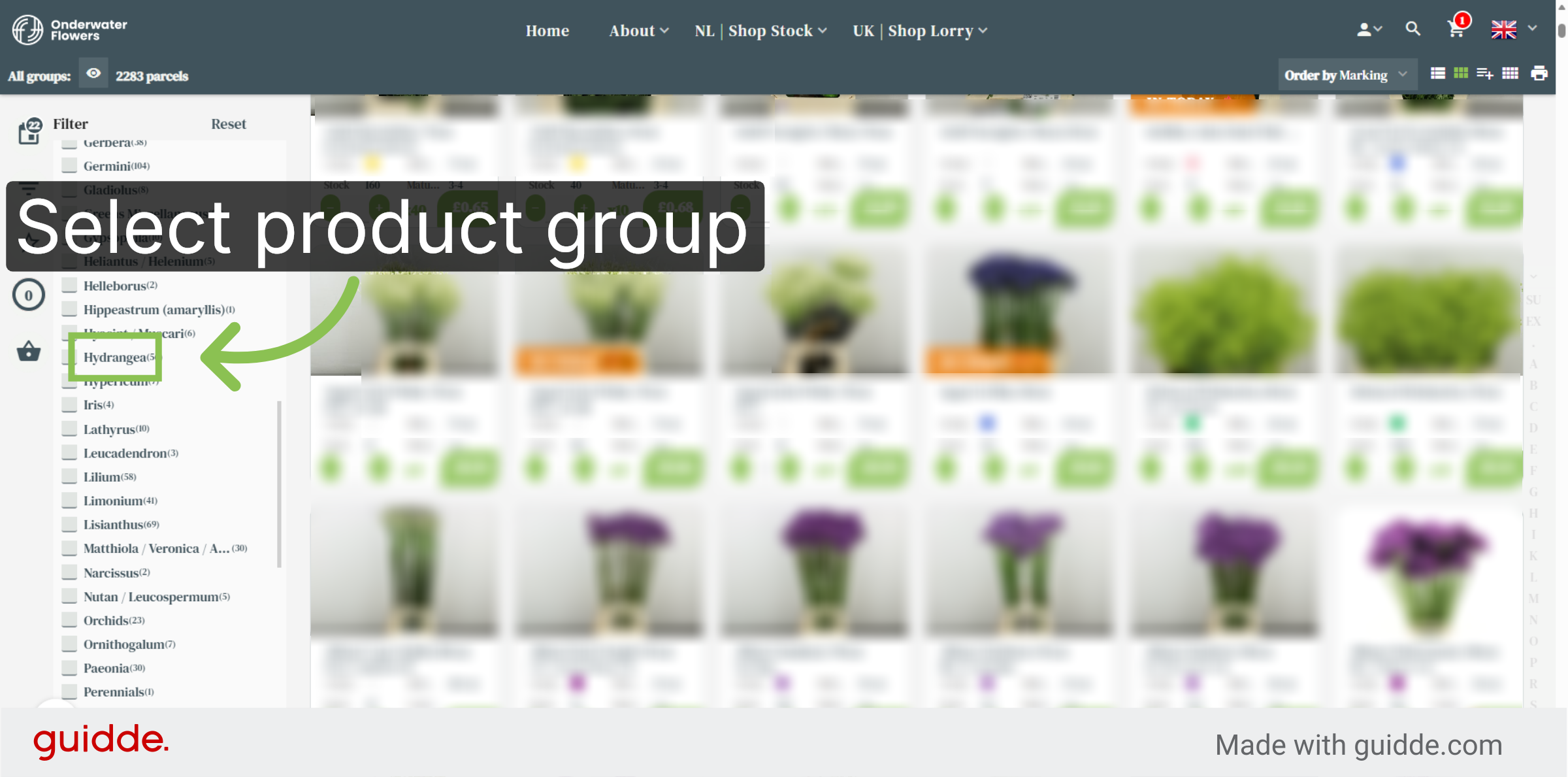
Select Hydrangea Group
Click Hydrangea to choose this specific product group for viewing.
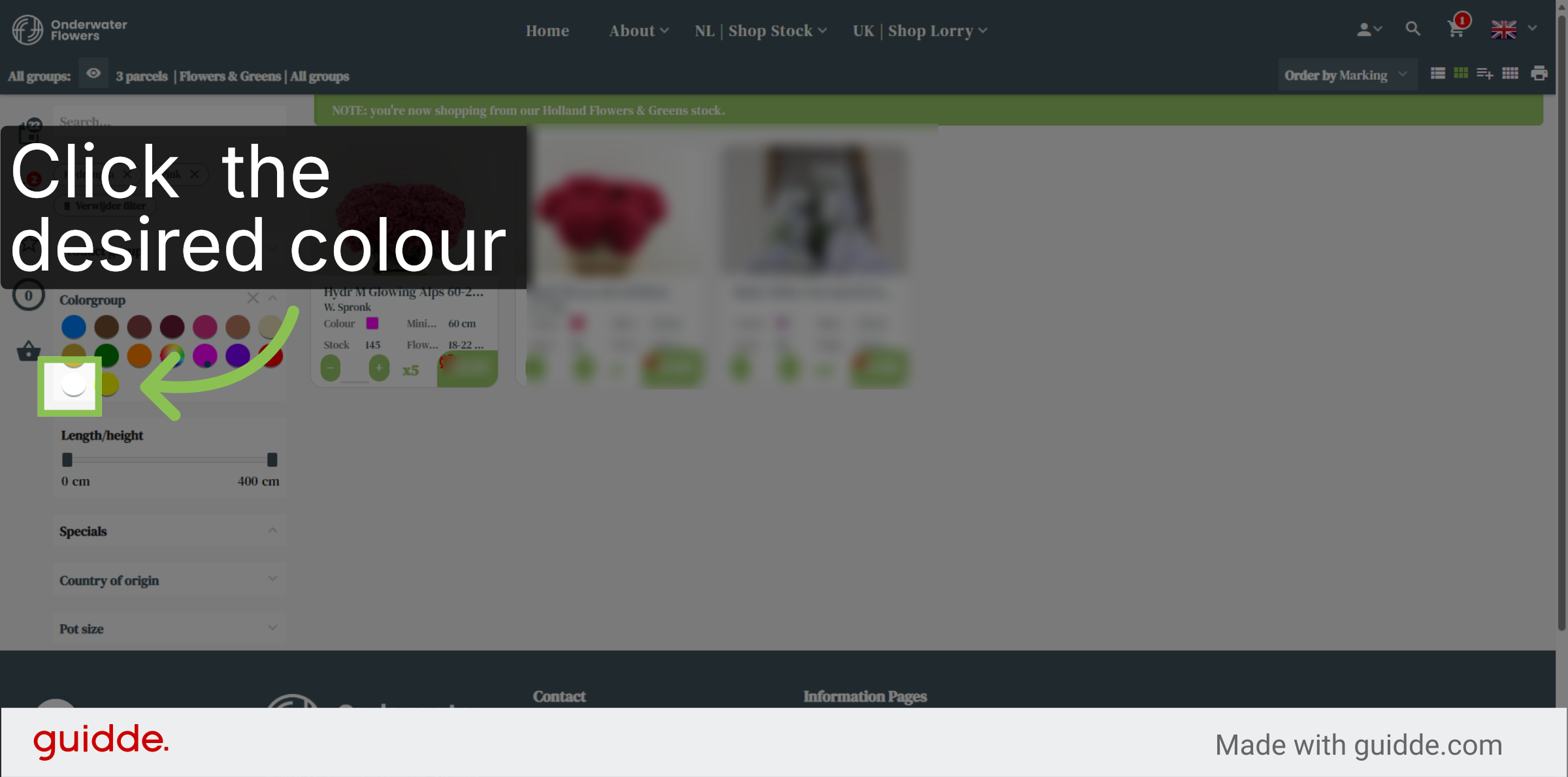
Filter on Colour Group
Click here to filter on colour group. Colour groups contain multiple single colours.
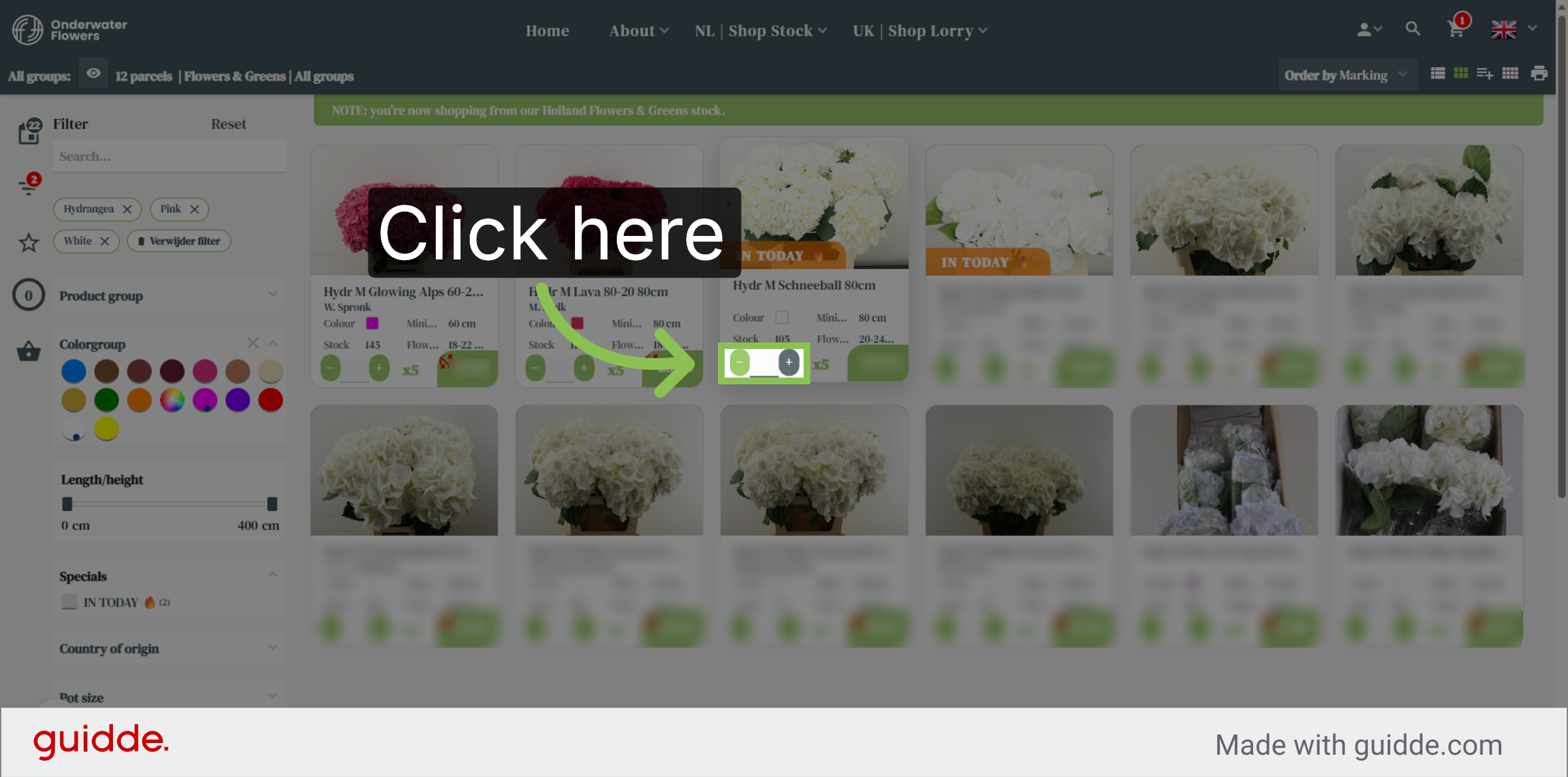
Buy Desired Amount
Click here to buy the desired amount.
Return to Shop Stock
As soon as you are done shopping flowers & greens, click NL Shop Stock to go back to the main inventory overview page.
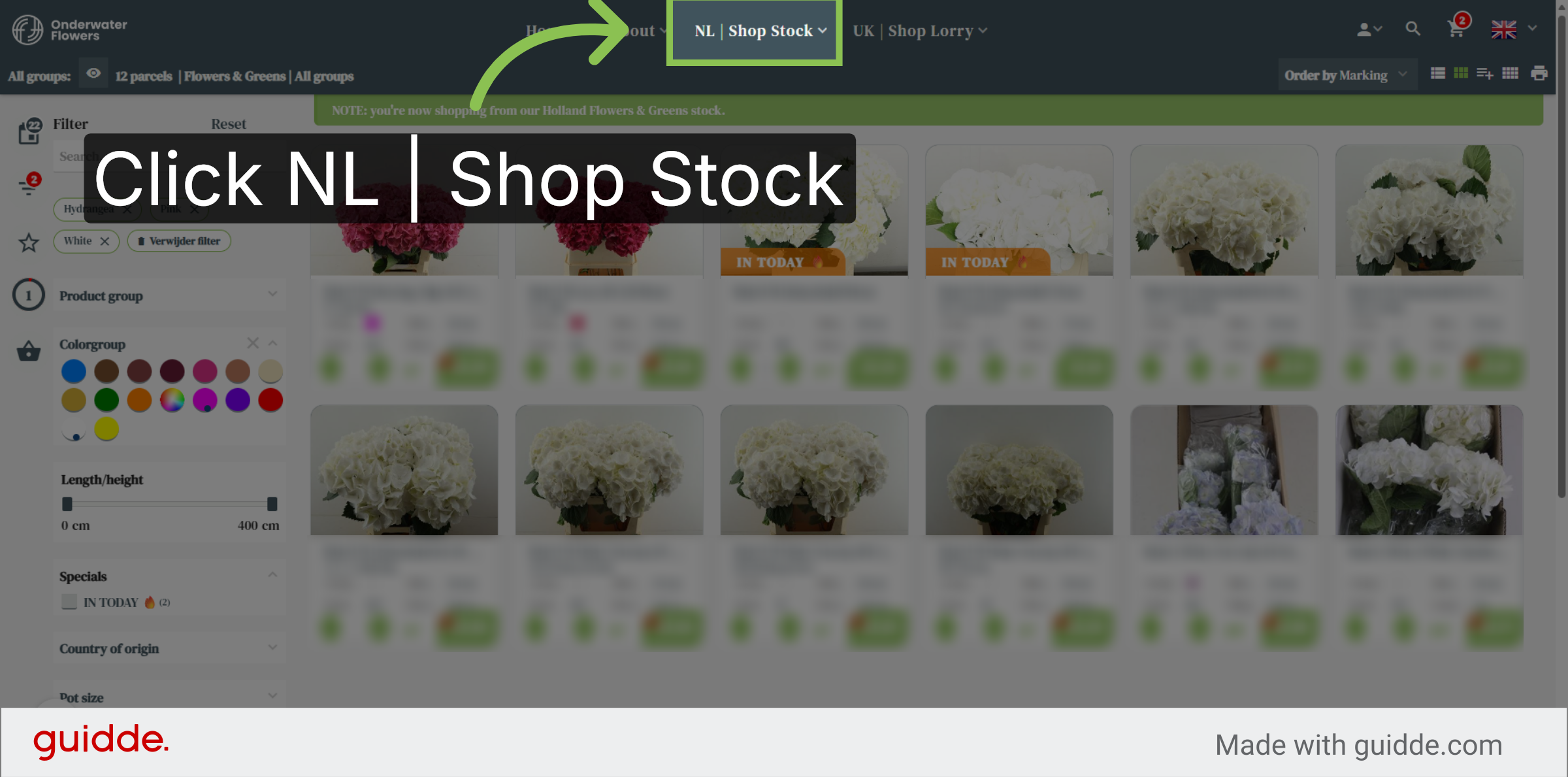
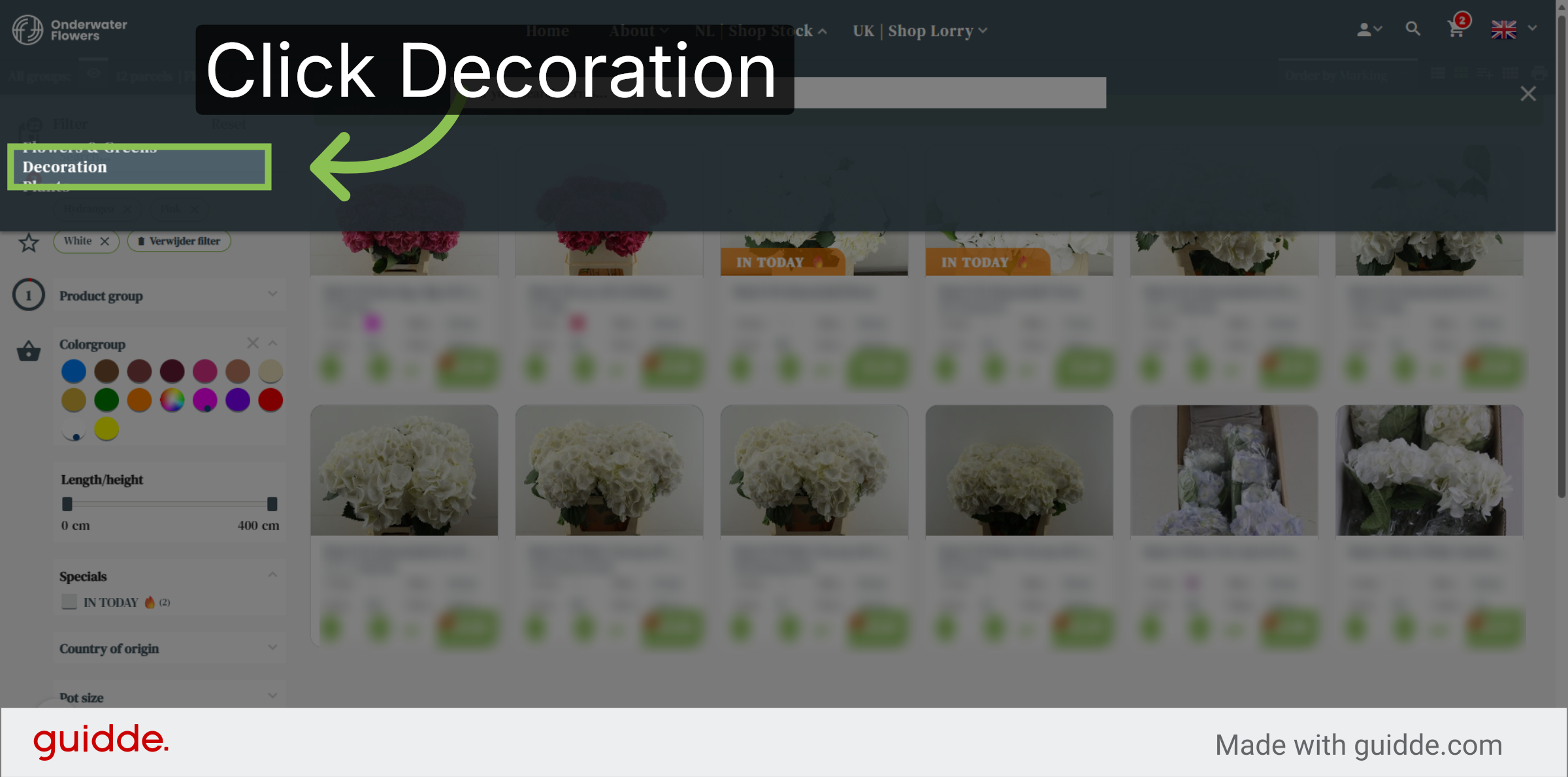
Open Decoration Category
Click Decoration to browse decorative items available in the shop.
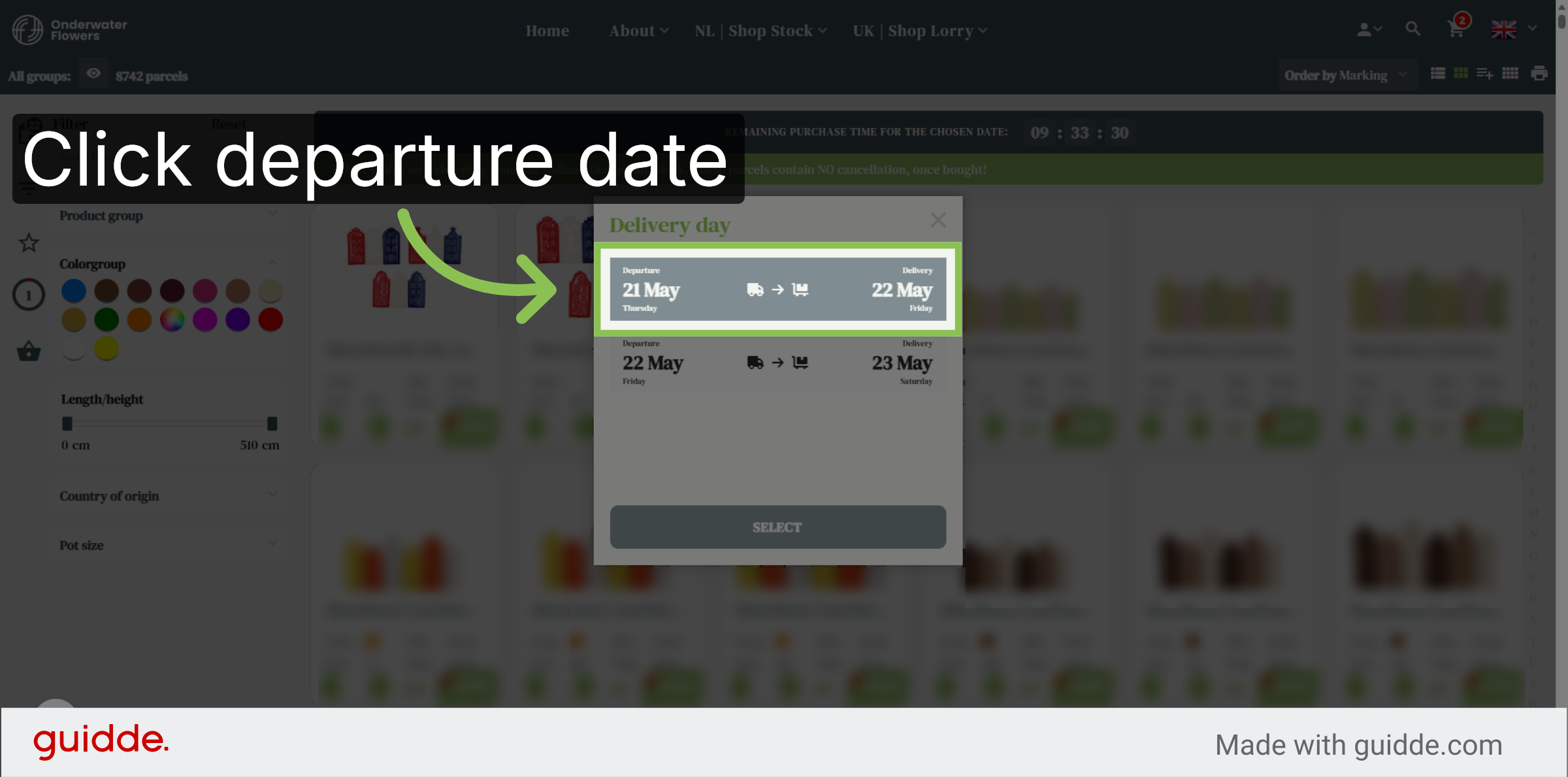
Choose Departure Date
As this is another inventory, please make sure you are choosing the corresponding departure date and estimated day of arrival together with the just bought flowers from the flowers & greens inventory.
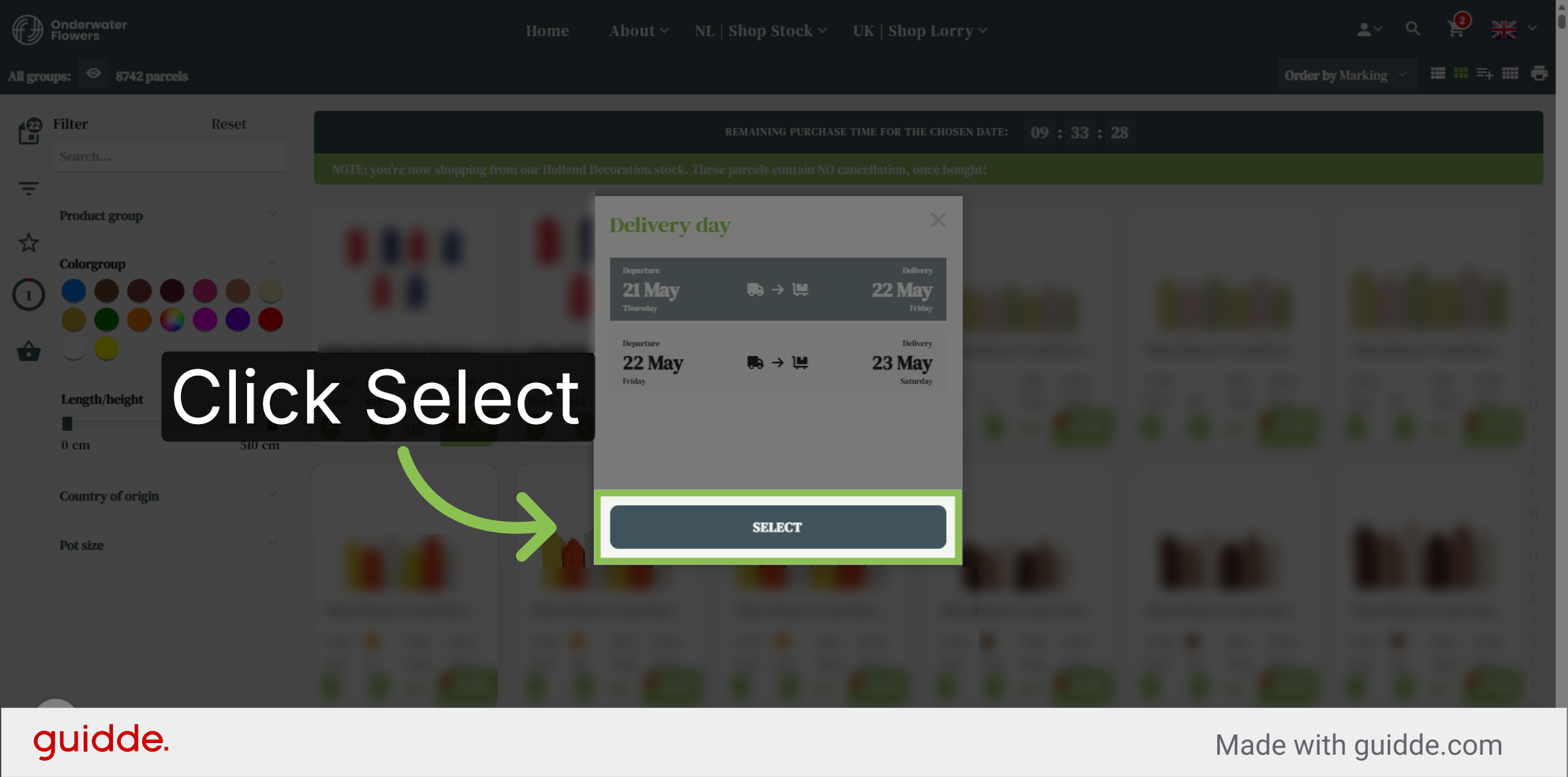
Confirm Selection
Click Select to finalize your date and product selections.
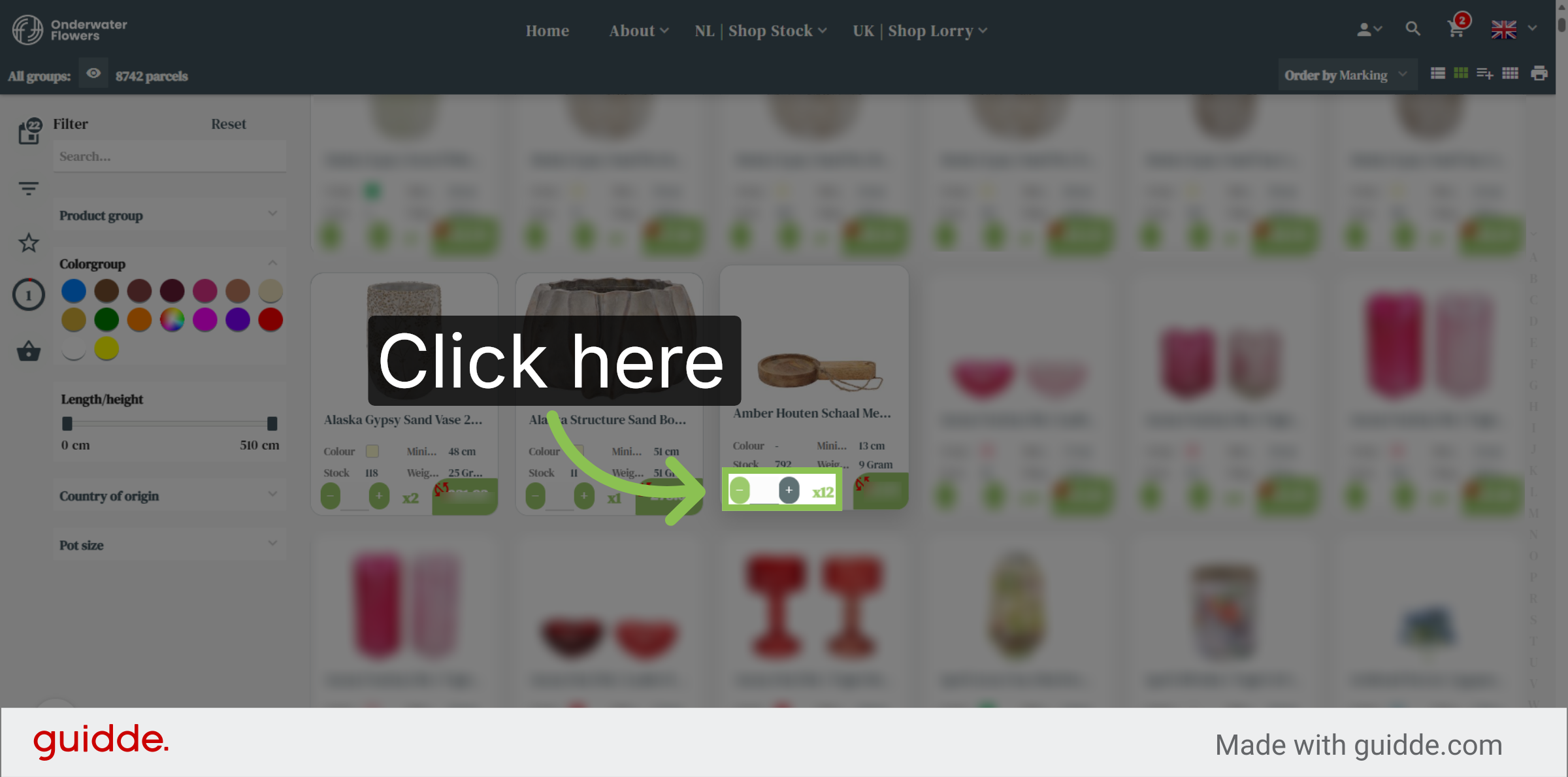
Buy Desired Amount
Click here to buy the desired amount.
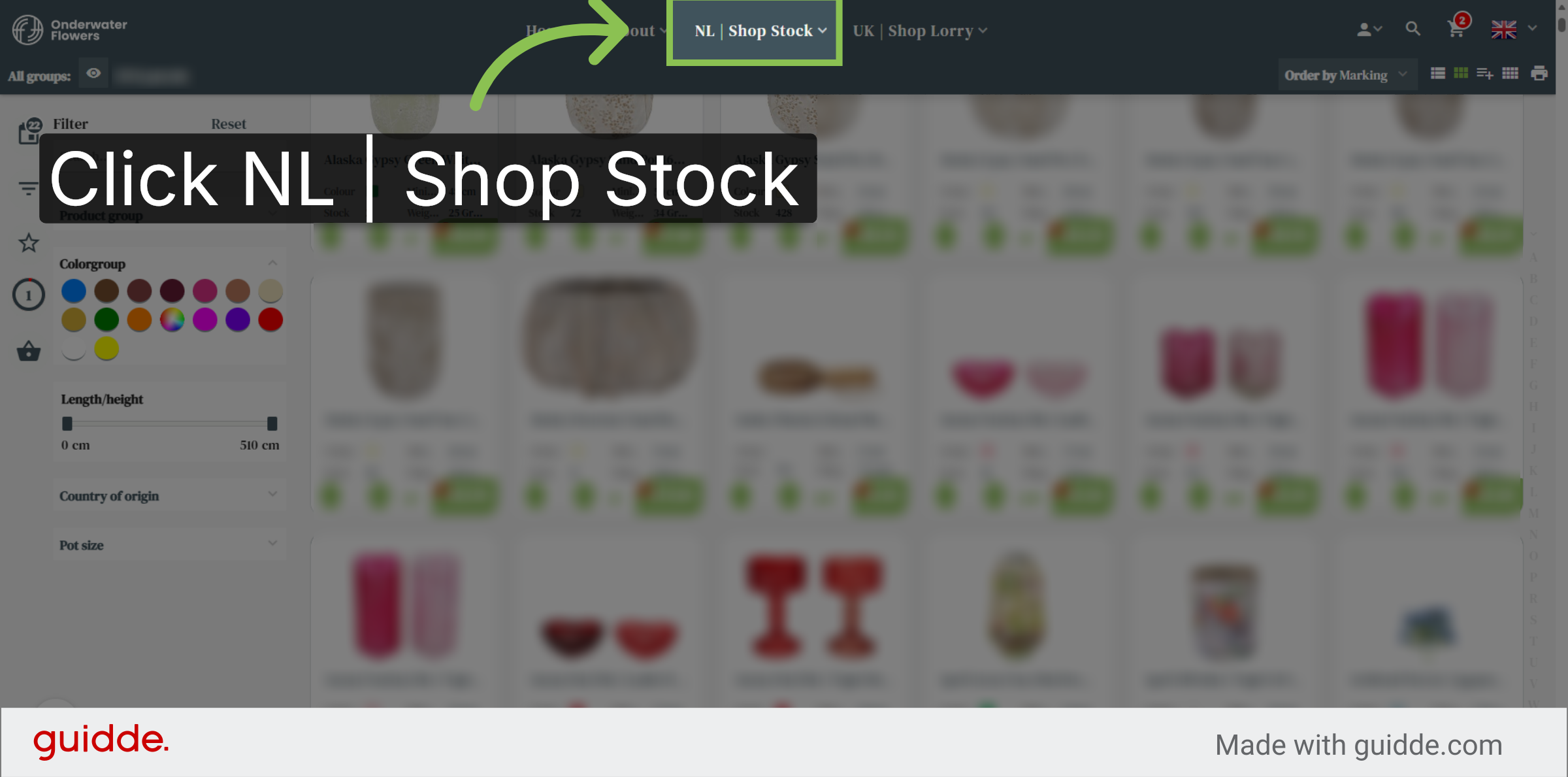
Return to Shop Stock
Click NL Shop Stock to navigate back to the inventory overview.
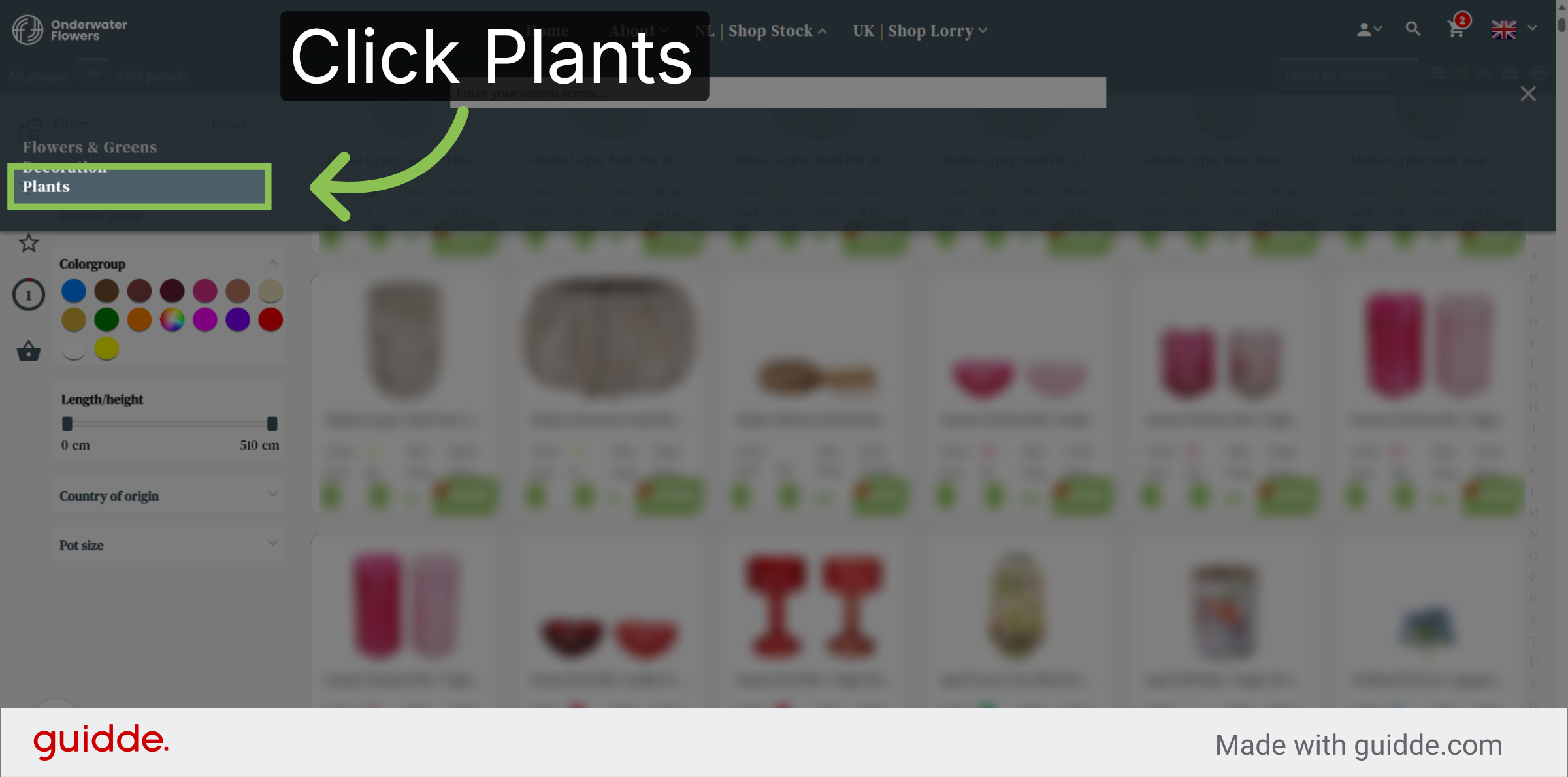
Open Plants Category
Click Plants to view the available plant products in the shop.
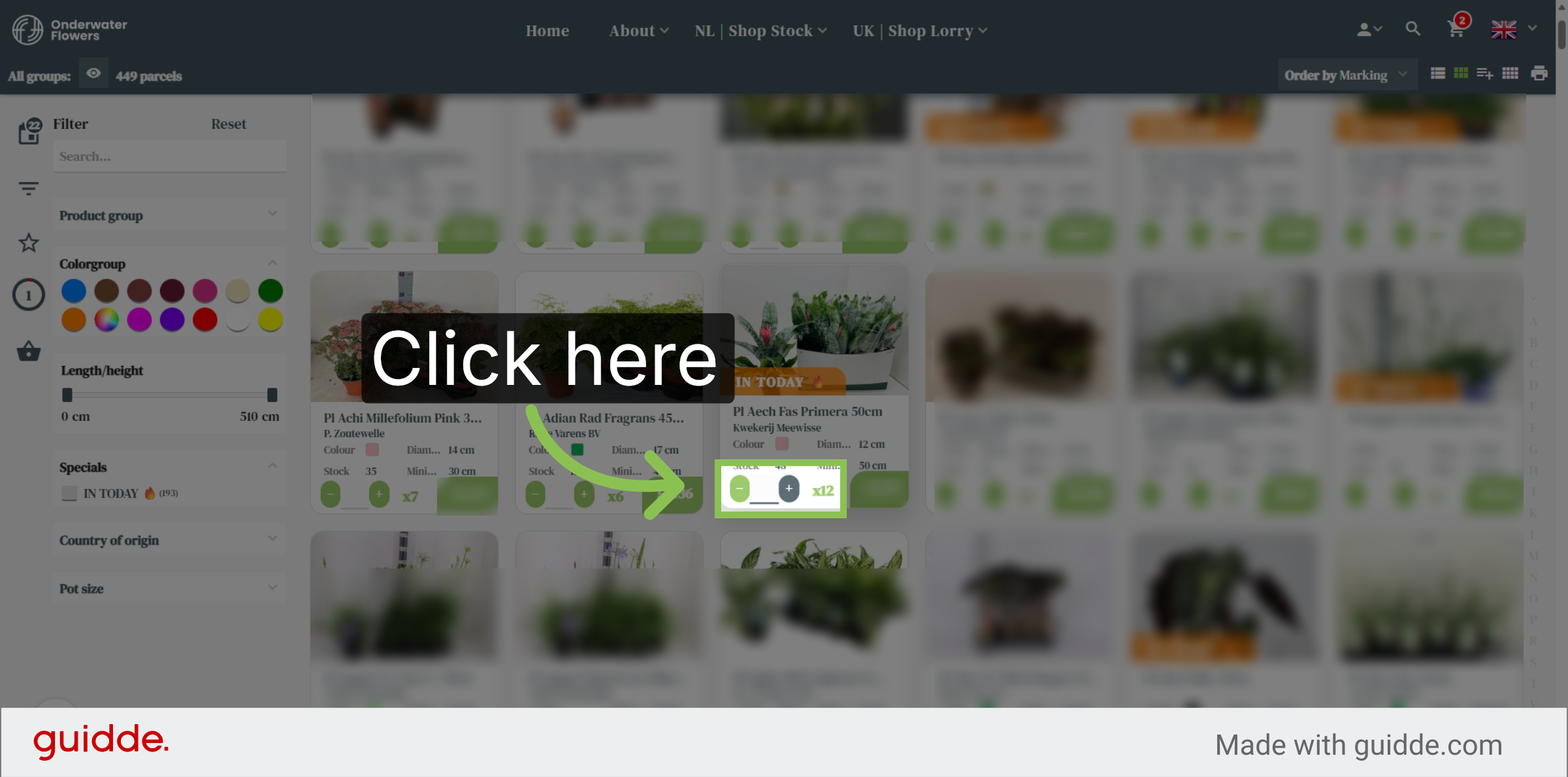
Buy Desired Amount
Click here to buy the desired amount.
Open Shopping Basket
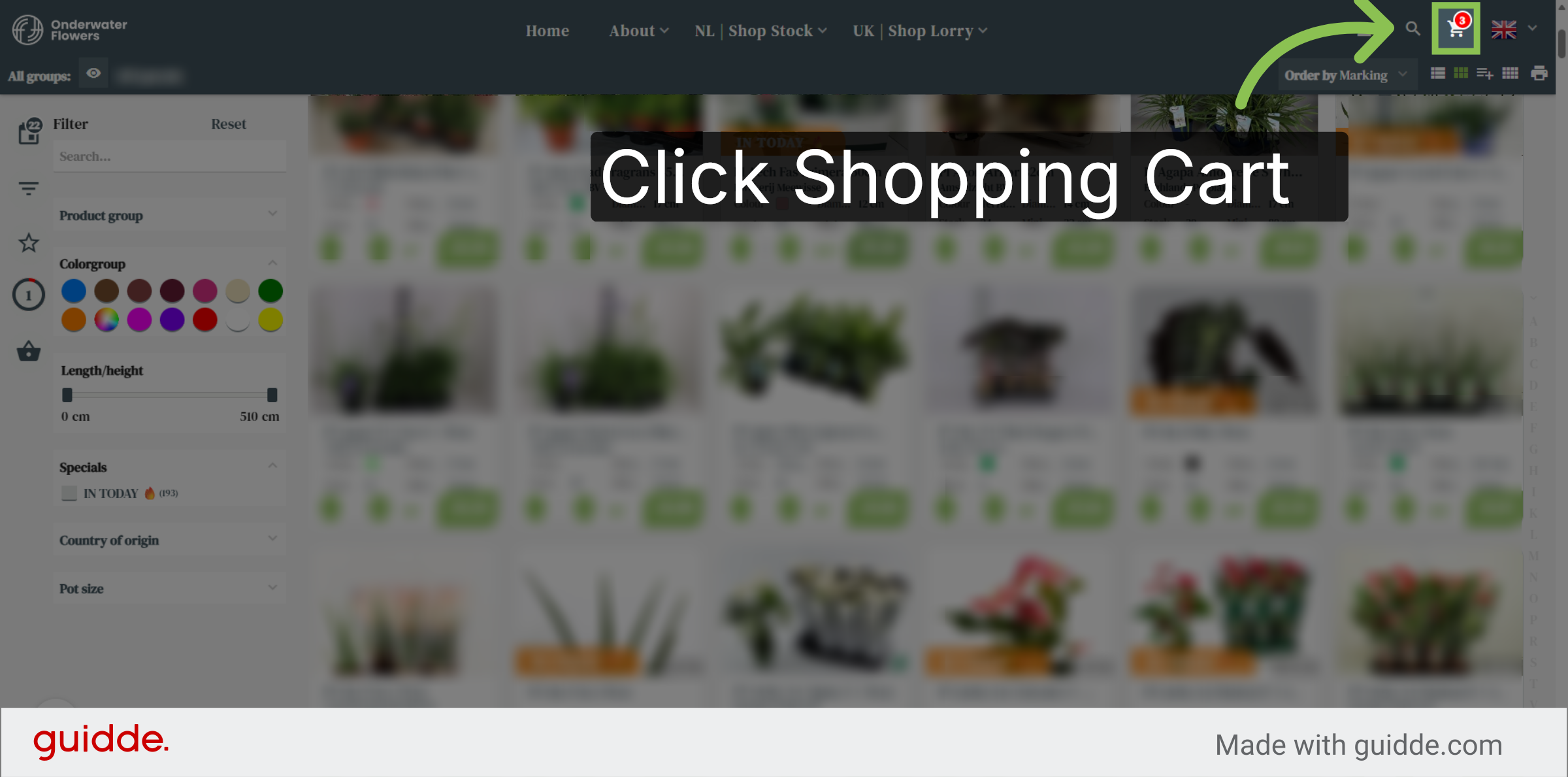
Click on the shopping basket to see the summarized overview of what you have just bought.
Shopping Basket Timer
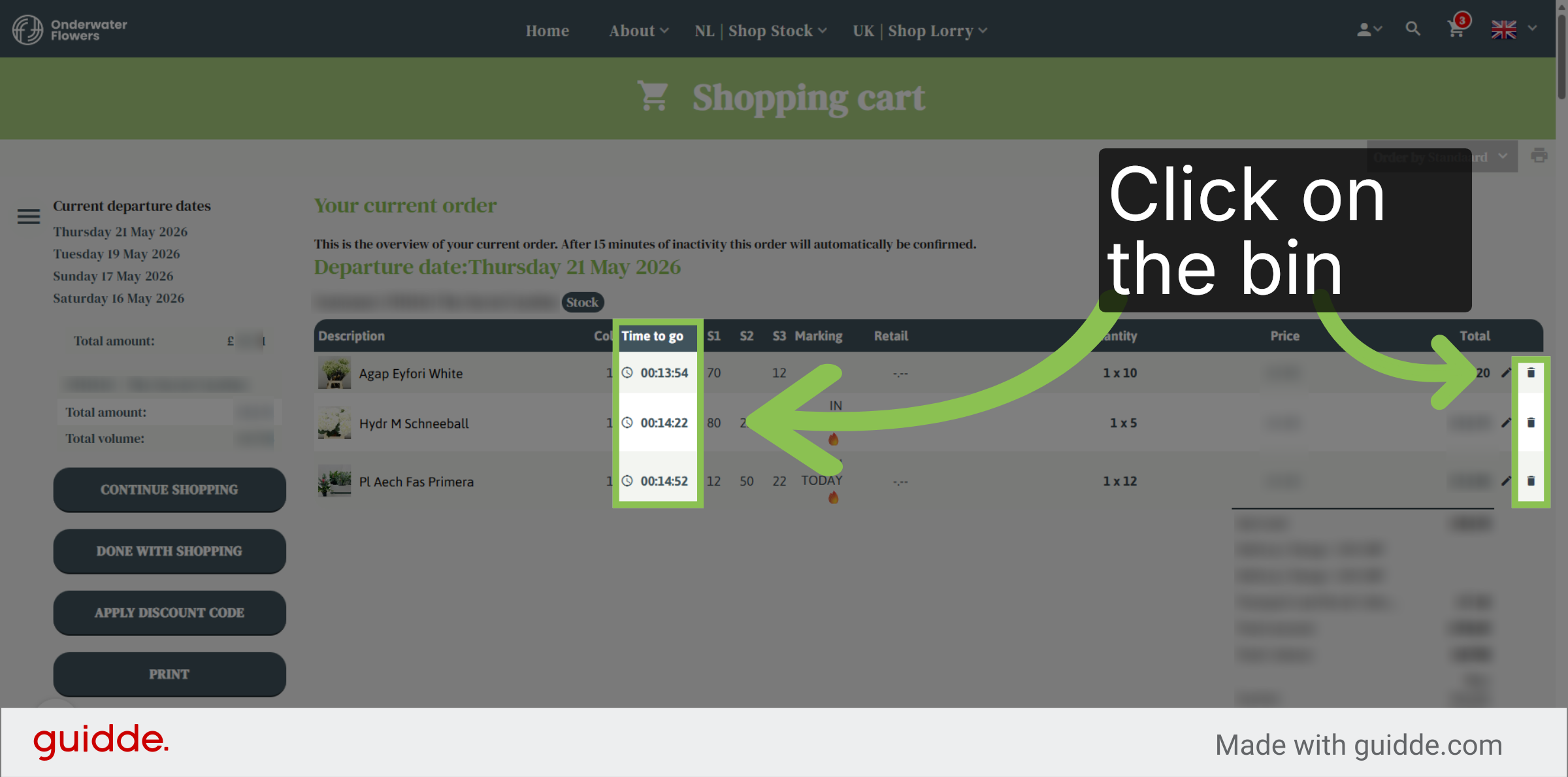
In your shopping basket there will be a timer countdown of 15 minutes as from the moment you have bought the item. Within that time you have the ability to cancel the item.
Confirm Item Deletion
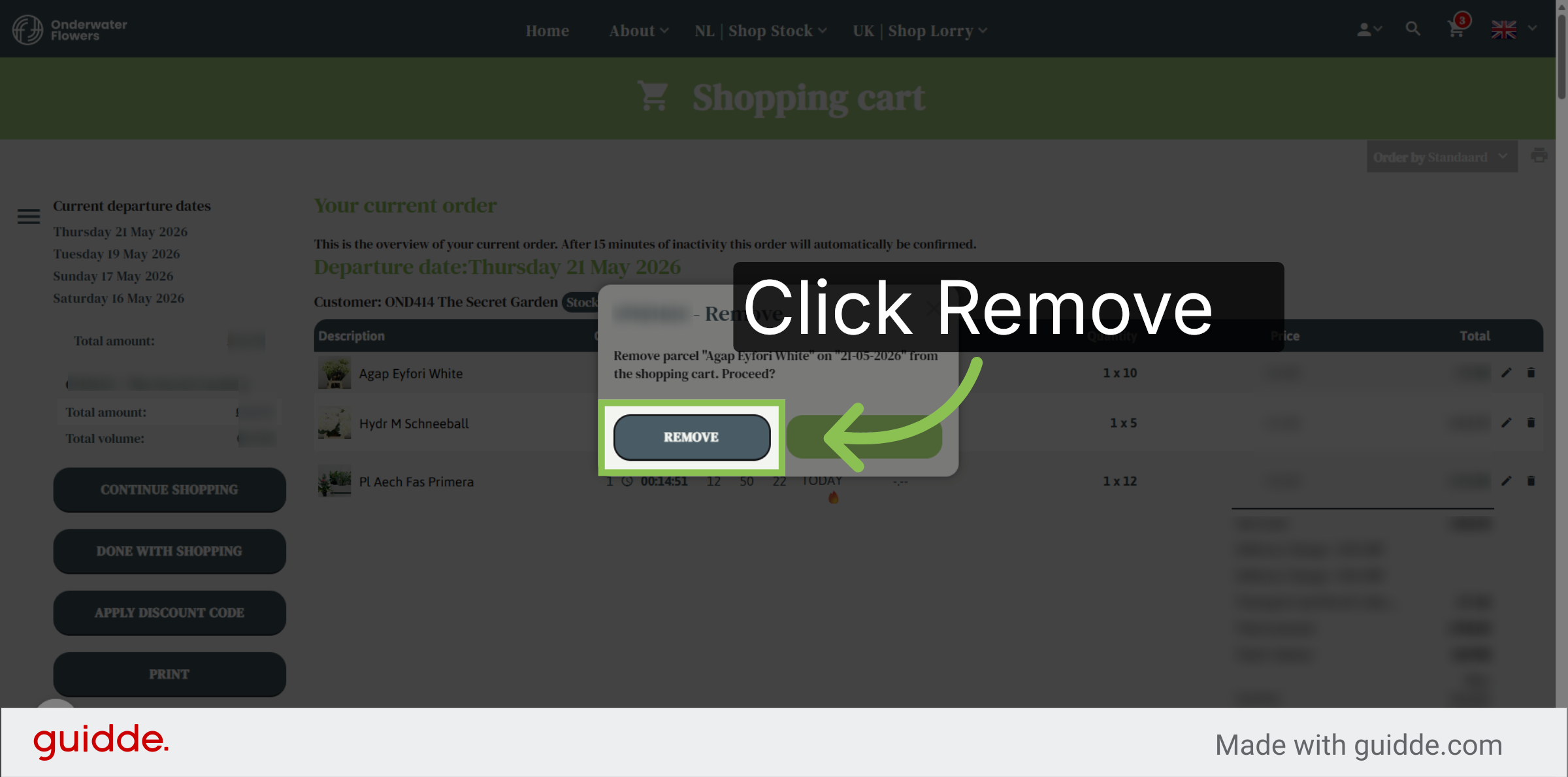
Click remove to confirm the removal of an item from your shopping cart.
Log Off
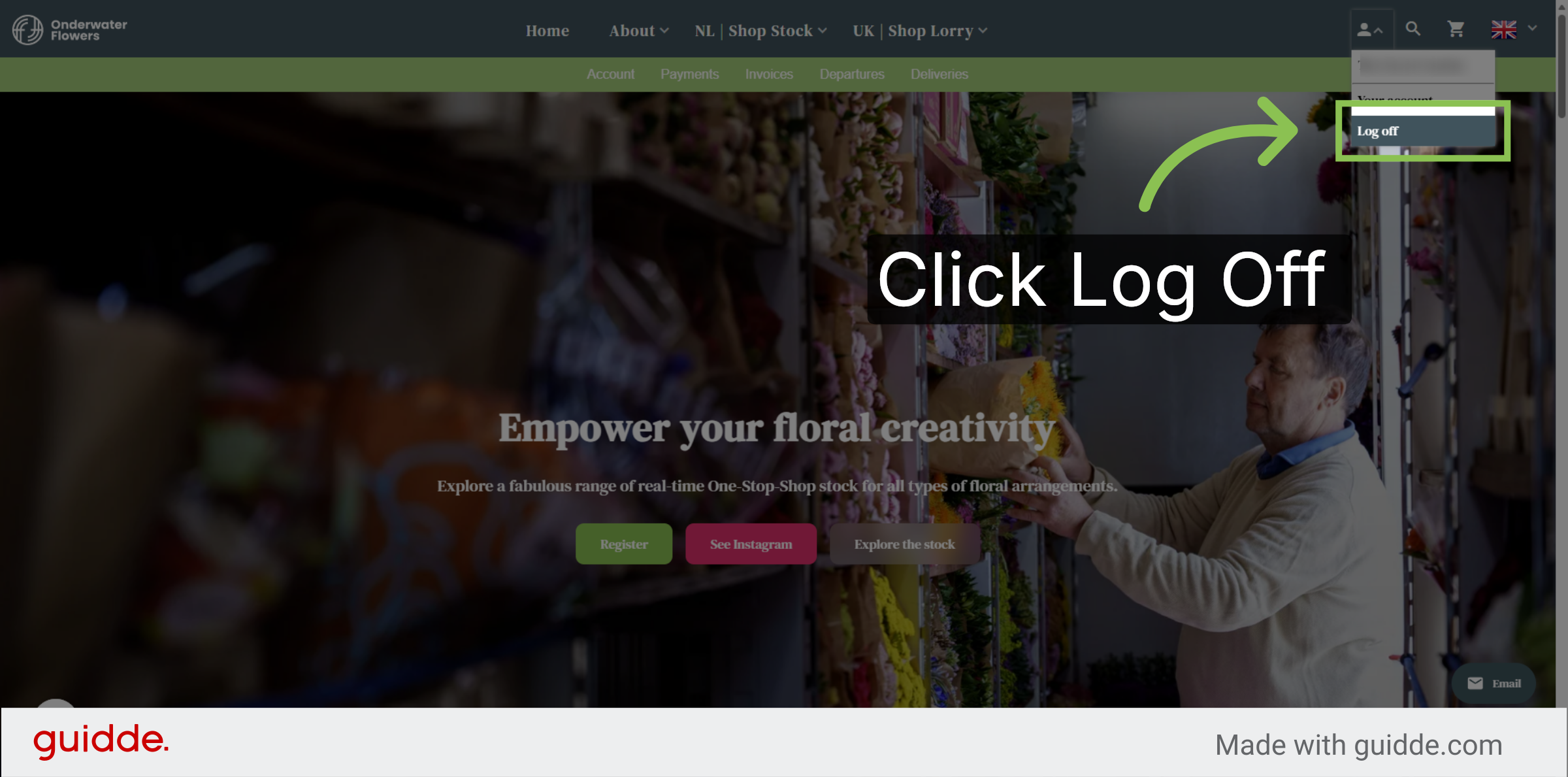
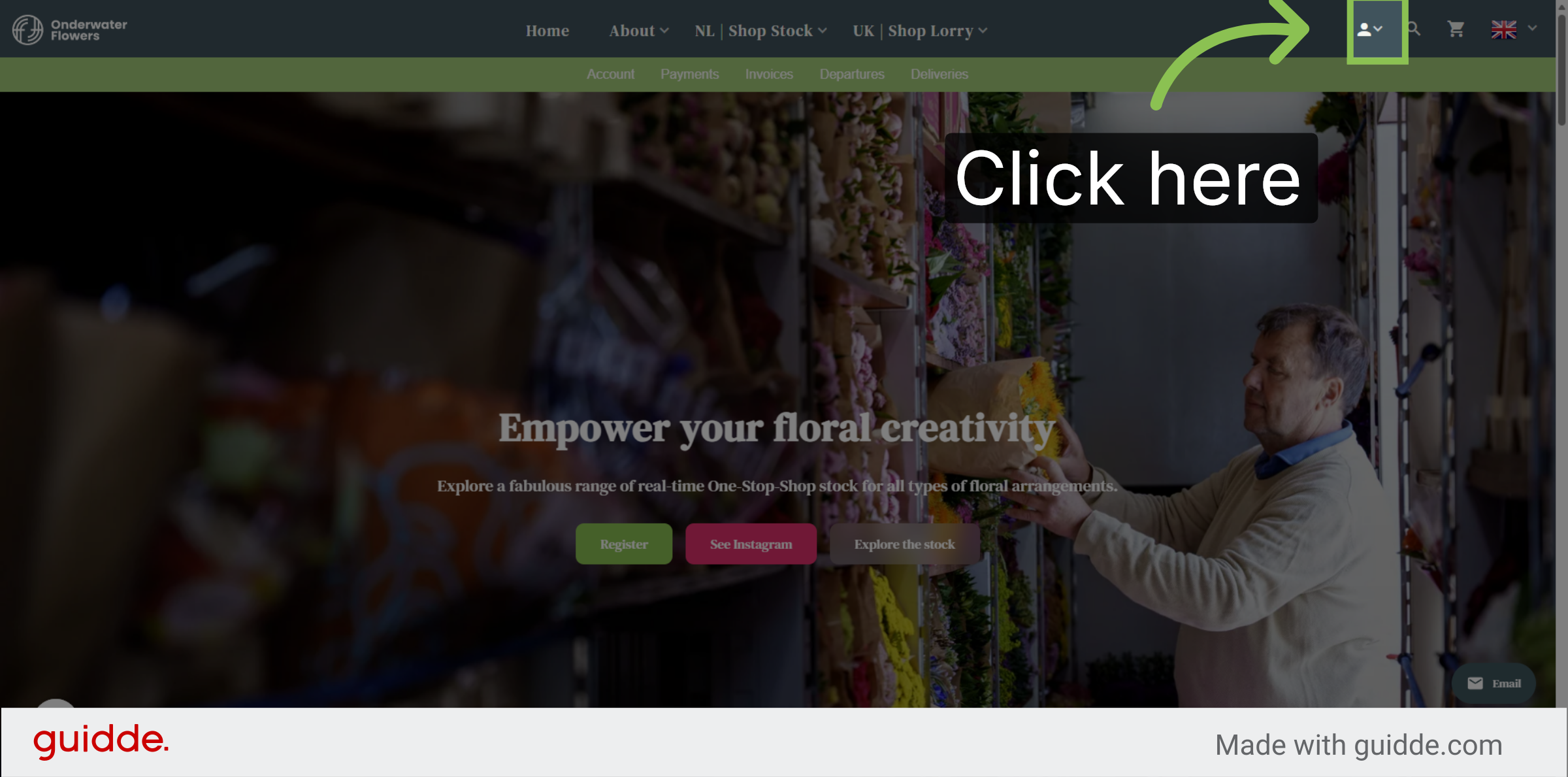
Once done with shopping, you can leave the webshop by logging off.
Log Off Account
Click Log off to securely sign out of your account and end your session. Once logged off, within 15 minutes you will receive a confirmation per e-mail.